The purchase request: more RAM or a bigger SSD?
Imagine a small business owner asking for approval to upgrade a laptop. It pauses when she switches from a browser to a spreadsheet while a design application remains open. She has noticed a high memory percentage and an almost-full storage bar. Would doubling RAM solve it, or should she buy a larger SSD?
This is a hypothetical purchasing question, not a report of a tested machine. Both proposals deserve a hearing. Neither has earned the budget yet. The useful question is what changes at the moment work stalls, and whether removing that demand changes the stall.
RAM holds working data for active software. Storage retains files and also serves operating-system tasks. More capacity in either place can matter, but the reason matters more than the number on the box. A larger SSD bought to relieve a shortage of working memory can leave the original frustration intact.
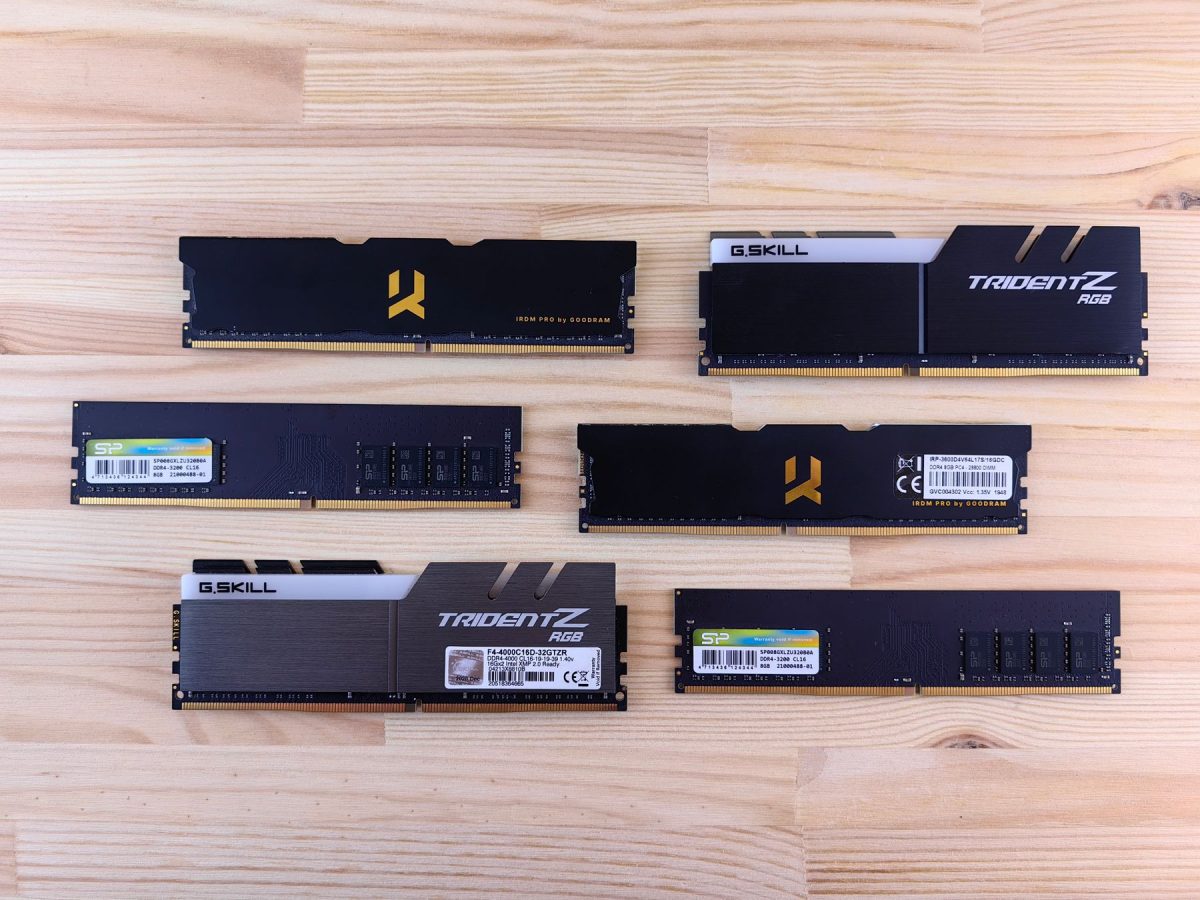
Three explanations enter the hearing
The RAM proposal says the required applications collectively need more working memory than the laptop can comfortably supply. It predicts that switching will become easier when a substantial optional workload is closed, and harder again when that workload returns.
The storage-capacity proposal says the machine lacks room for its normal work. It predicts concrete difficulties: an update asking for space, a project unable to create temporary files, or insufficient room for the next job. A crowded storage bar raises the question; an application's actual space requirement makes the case more specific.
The drive-activity proposal concerns the work being done by the storage device. A backup, file copy or application loading data may compete with the foreground task. That can happen on a drive with plenty of free space. Conversely, a nearly full drive can be relatively quiet during a particular pause.
There is also an interaction. Windows can move infrequently accessed modified memory pages into a page file; macOS uses swap on the startup disk. Consequently, disk activity can accompany memory demand. Microsoft's page-file explanation is a reason to investigate the relationship, rather than treating every busy-drive graph as a vote for an SSD.
Ask Task Manager what happened during the pause
For Windows 11, press Ctrl + Shift + Esc to open Task Manager. Select Performance, then Memory. During the troublesome switch, note available memory and the pattern over time. Visit Disk and CPU for the same operation. These are the resource views Microsoft recommends examining; navigation placement can vary by release.
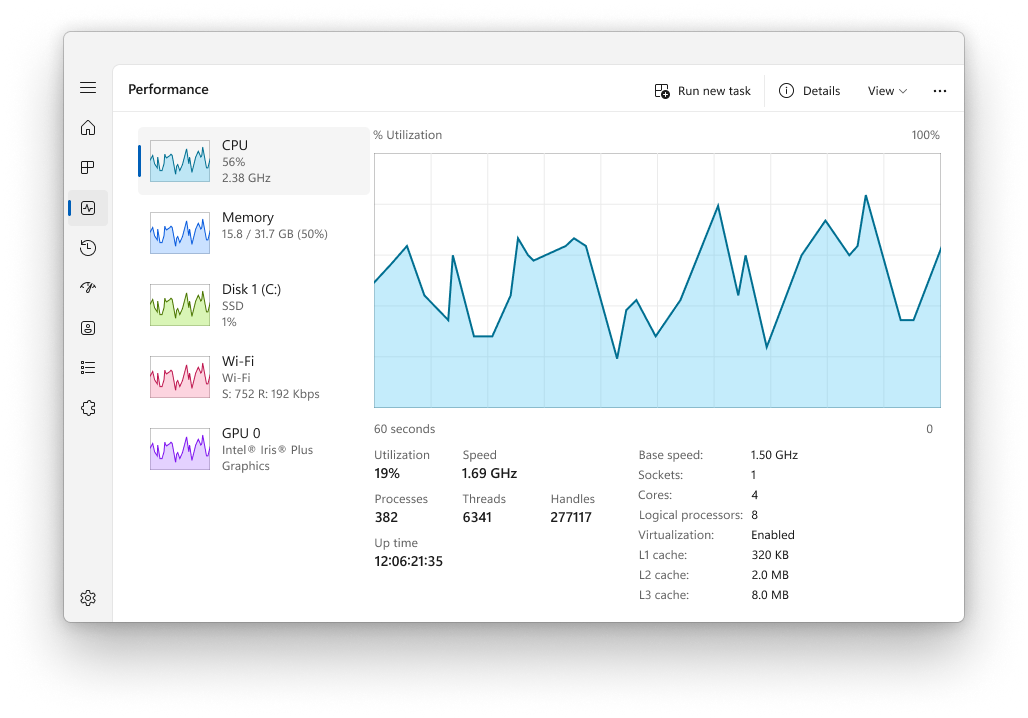
In Microsoft Windows 11 Task Manager, Performance → CPU shows CPU activity for the comparison. Memory and Disk are available in the resource list. These are Microsoft’s example readings. Used with permission from Microsoft.
Version notes
Official Windows 11 sidebar Task Manager illustration; exact build unknown. CPU is selected for the article’s CPU inspection step.Under Processes, sort by the Memory or Disk column to identify a familiar application contributing to demand. The column leader is a lead to follow, not a finding of fault. A design application can legitimately use substantial resources while doing useful work.
Read Committed carefully in the Memory view. Its current value and limit concern committed virtual memory, with backing provided by RAM and page files. They are not a direct reading of bytes currently being read from the page file. Approaching that limit is a different concern from simply seeing a high RAM percentage. Leave virtual-memory settings alone during this inquiry; changing them would introduce another variable.
Disk Active time describes activity, not the percentage of storage occupied by files. Microsoft's Task Manager provider documentation distinguishes active time, capacity, response time and transfer rates. A high activity figure does not establish that the drive is full, defective, or delivering its advertised maximum speed.
Finally, open Start > Settings > System > Storage to inspect capacity separately. Record the available space without running cleanup. The hearing needs an observation before it needs an intervention.
On a Mac, question pressure rather than unused RAM
Open Spotlight, search for Activity Monitor, and open the app; Apple's included-apps guide documents this search route. Select Memory and watch Memory Pressure while performing the troublesome switch.
Apple describes green pressure as efficient RAM use, yellow as a possible need for more RAM, and red as needing more RAM. Its guidance explicitly rejects the idea that unused memory necessarily improves performance. Read the graph alongside the delay, and note Swap Used without treating its mere presence as a purchasing verdict.
Next, select Disk. Apple's disk-activity guide describes read/write activity and data amounts. Look for changes during the task; a large accumulated total is not itself a measurement of how busy the disk is at this instant. These displays do not provide a Windows-style universal saturation percentage.
For capacity on macOS versions using System Settings, choose Apple menu > System Settings > General > Storage. The storage chart answers the space question separately. If an older release has different labels, search its settings for Storage rather than following cleanup instructions for another version.
Can the explanation survive a changed workload?
Return to the owner's switching problem. Save documents, keep the same spreadsheet and browser work open, and reproduce the pause with the monitor already running. Write one sentence about the symptom and one about the resource pattern. Observe ordinary work; manufacturing a huge workload would answer a different purchasing question.
Now save and close the optional design application through its own interface. On a Mac, quit it through the application menu rather than merely closing its document window. Repeat the switch. Reopen the application with the same saved project and repeat again. Avoid ending unfamiliar system processes or interrupting a backup to make the display quieter.
If responsiveness improves with the application closed and deteriorates when it returns, the combined workload deserves attention. If memory indicators ease at the same time, that strengthens the RAM explanation. Closing an app can also reduce CPU and disk work, so improvement alone does not isolate memory. Record those competing changes rather than awarding the case to the first graph that falls.
Suppose the pause occurs only while a known file transfer is running. Let that transfer finish naturally, then compare the same task. Suppose instead only an online dashboard waits while local switching remains responsive. That moves the inquiry toward the service or connection. Neither observation supports buying RAM merely because memory usage looks high.
Do not force an answer from unstable observations. If an update begins between comparisons, note it and revisit the question during another ordinary session. If files disappear or the system reports storage errors, stop the comparisons and protect recoverable data before seeking service.
What would a larger drive actually buy?
A capacity upgrade can be justified even when it does nothing for application switching. The owner might need local room for a project, its temporary working files and retained originals. Ask which requirement the present drive cannot meet. Avoid replacing that requirement with an arbitrary free-space percentage.
If familiar archived files appear to be the issue, first make an independent copy and verify its contents. Keep the originals during the purchasing inquiry. Deleting system folders or manually removing swap files is unnecessary to establish whether more capacity would be useful. Cloud synchronization also needs care: a deletion can propagate to other devices.
Replacing a hard drive with an SSD and replacing one SSD with a larger SSD are different proposals. The former may address access performance; the latter may chiefly buy room. Establish the installed device and exact model's supported replacements before requesting a quote. More RAM likewise requires a supported configuration; a memory graph cannot establish whether the laptop accepts replacement modules.
Decision memo: approve a remedy for a named constraint
For the hypothetical owner, defer the purchase until the switching comparison is recorded. The initial combination of high memory use and a crowded drive cannot distinguish the proposals.
Favor RAM if the required simultaneous workload repeatedly produces memory strain and switching delays that ease when demand is reduced. Price a compatible upgrade only after checking the manufacturer's service documentation. If memory cannot be upgraded, compare the cost of replacing the computer with the daily cost of the reduced workflow.
Favor storage capacity if the next real job cannot fit, even when the machine is responsive. Consider a drive-performance proposal separately if ordinary work continues to wait on storage after unrelated transfers finish. Neither finding promises that a larger SSD will cure memory pressure.
Keep the budget uncommitted if delays track CPU work, an online service, one misbehaving application, or observations that do not repeat. A useful quote should name the symptom it is expected to change and include backup, migration and downtime. That is the purchase request worth approving.
Sources, versions & scope
The steps describe the documented controls and expected checks; they are not a claim that every device or software release has been physically tested. Platform and version differences are stated with the procedure.
- Tips to improve PC performance in Windows
- Apple: Check if your Mac needs more RAM
- Microsoft: Free up space for Windows updates
- Introduction to page files
- MSFT_MTDisk class
- Check if your Mac needs more RAM in Activity Monitor
- View disk activity in Activity Monitor on Mac
- Apps included on your Mac
- Change Storage settings on Mac