A raised trackpad or a new gap along a laptop’s casing deserves attention even if the computer still works. Suspected battery swelling is a reason to stop charging and using it. You do not need to finish a battery-health report before acting.
This guide focuses on a Windows 11 laptop with a built-in rechargeable battery. It covers external recognition, stopping use and arranging professional help. It does not walk you through opening the enclosure or removing a damaged battery. The photographs show older Apple battery hardware solely to illustrate physical swelling.
First decide whether to step away
If the device is smoking, hissing, popping, rapidly expanding or producing intense heat, stop approaching it. Warn others, leave the affected area and call your local emergency services from a safe place. Do not carry it through the house, put it in a bag or stay beside it trying to complete a shutdown. Keep clear of fumes.
The US Fire Administration warns that battery fires can develop quickly and produce harmful emissions. Its advice is to stop using a battery immediately when it is swollen, smoking, hissing or punctured. A device showing these signs needs a different response from an ordinary warm laptop.
For a device with a new bulge but no active warning signs, proceed cautiously below. Absence of smoke does not make continued use acceptable. If you cannot safely reach a cable or control, leave it alone and seek help.
Look for a change in shape, without opening anything
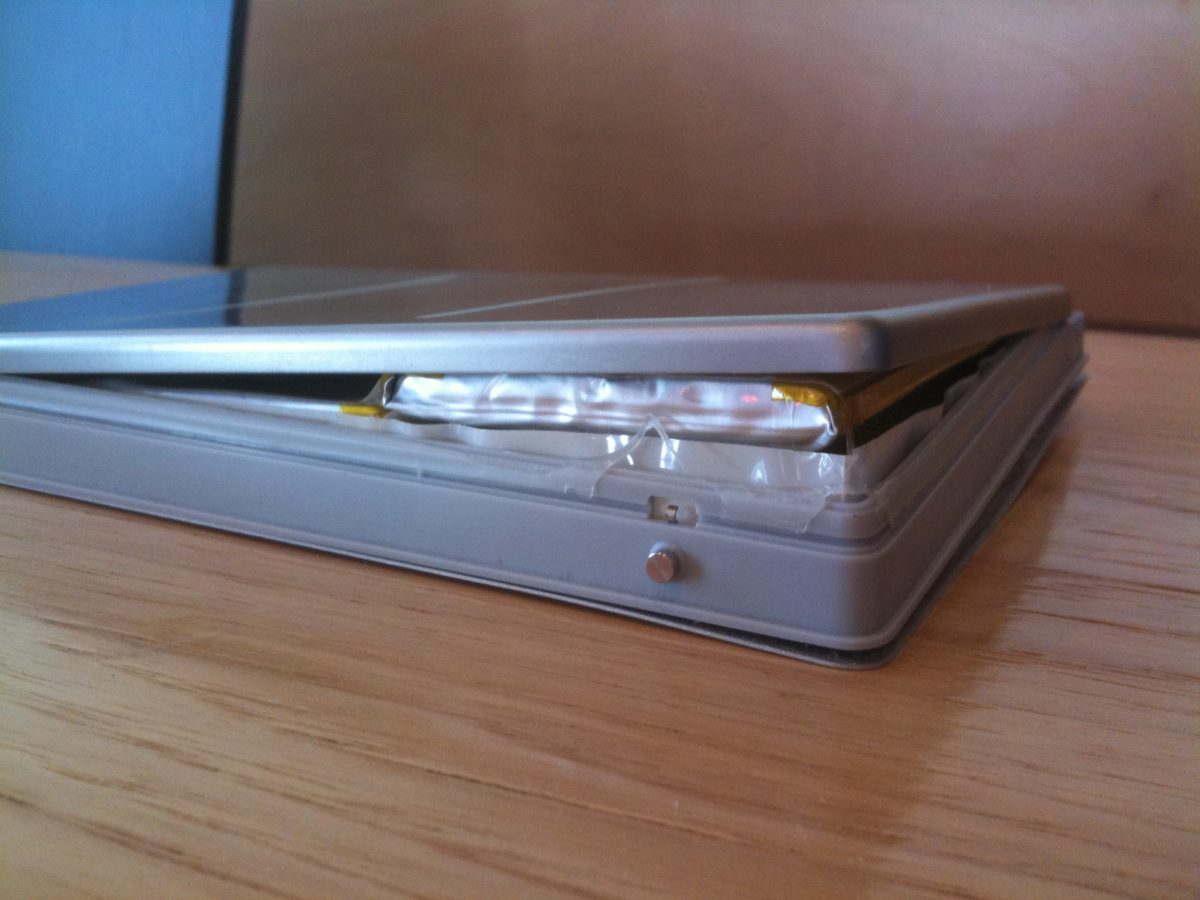
Inspect only what you can see externally without squeezing, twisting or turning the device over unnecessarily. Look along accessible edges for a seam opening, a base panel bowing outward or a keyboard or trackpad being pushed upward. Do not press a raised trackpad to see whether it still clicks.
A gap in an enclosure can be an outward warning even when the battery itself is hidden. If a battery pouch is already exposed through damage, look only from a safe distance: a rounded, inflated pouch is a stop-use sign. Do not peel back a cover to obtain a clearer view.
In the close-up photograph, the silver battery pouch is visibly inflated and the surrounding assembly has separated. Use it to recognise deformation, not as an instruction to expose your own battery.
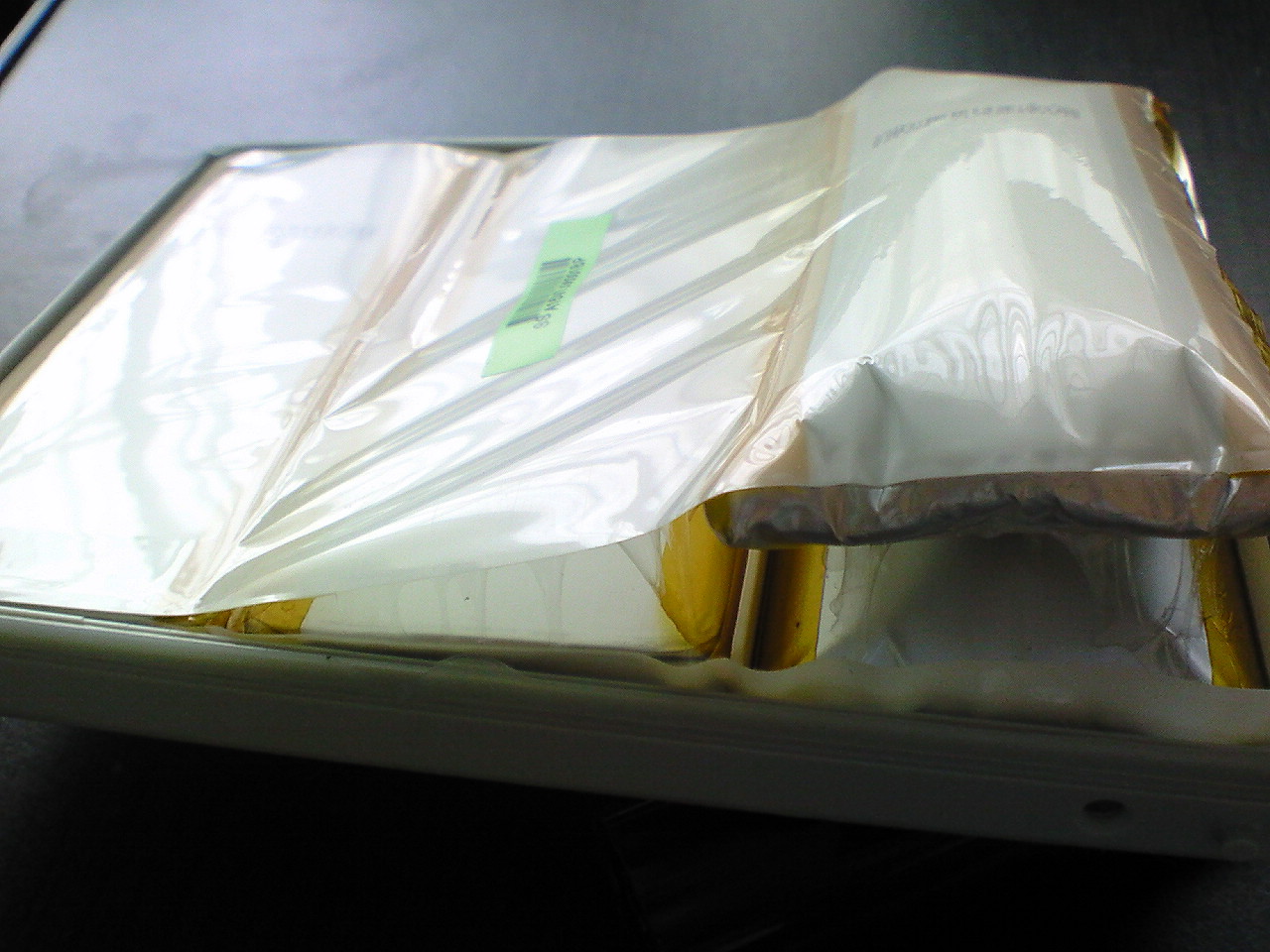
Recognise the inflated silver pouch and separated assembly. This 2008 physical example is not an instruction to open a laptop or remove its battery. Photograph: sparti24; original unchanged.
Version notes
Evergreen hardware warning-sign photograph, taken 13 July 2008. Older Apple battery hardware illustrates pouch inflation only; no software version, Windows device identity, removal method or safe handling result is implied.Microsoft’s Surface safety guidance describes a swollen pouch as appearing loose or puffy. It also flags leaking and damage. A dent or broken fitting could have another cause; an external inspection cannot confirm the internal fault. Report suspected swelling and let a technician determine it.
Short runtime alone does not establish swelling. Conversely, a reassuring battery percentage does not explain away a physical bulge. Record the visible change rather than attempting repeated charging tests to settle the diagnosis.
Remove charging power and shut down once
Use this sequence only while the laptop has no active danger signs and its ordinary controls are safely accessible. If it is already off, leave it off.
- Disconnect external charging power if you can do so safely. Include a powered USB-C dock or monitor that supplies power; removing only the usual charger may leave another supply connected. Avoid pulling against a distorted socket or pressing the casing.
- On Windows 11, select Start → Power → Shut down. This is the route in Microsoft’s shutdown instructions. Closing the lid or briefly pressing the physical power button can instead put a laptop to sleep.
- Allow shutdown to complete without starting another task. Expect the shutdown screen to finish and ordinary operating activity to cease. A dark display by itself is not proof: it can also mean the display has timed out.
- Leave the laptop off and disconnected. Tell anyone who might borrow it that suspected battery damage is the reason it must not be charged or switched on.
If a lifted trackpad prevents selecting the menu, an already connected mouse may let you reach it without pressure. If Windows is frozen, stop ordinary troubleshooting. Get the manufacturer’s instructions for that exact model from another device; do not guess a long button hold that may restart it. Escalate immediately if heat, noise or smoke appears.
Do not keep using the laptop to drain the battery or complete a backup. Repair documents may describe discharge preparation for servicing, but that is not a reason to run a suspected damaged device unattended. Ask support how they want this particular unit handled.
Arrange help before packing it
Keep people and pets away. If it is already resting on a stable, non-combustible surface away from flammable items, avoid further handling. For an awkward location or uncertainty about moving it, ask the manufacturer or local fire service for advice. Do not seal it in luggage, leave it in a hot car or place it where it blocks an exit.
Never squeeze the case closed, puncture the pouch, pry out a stuck pack or try to flatten it. A charger-only workaround still leaves the suspect battery inside. Professional assessment comes before deciding whether the laptop can be used again.
Contact the manufacturer or an authorised service provider using another device. Say “suspected swollen battery” at the start. A useful request includes:
- The model and serial number, taken from existing purchase records if reading the label would require handling the laptop.
- What changed: for example, a lifted trackpad or widening side seam, and whether you noticed unusual heat, smell or noise.
- Whether the device is now off and disconnected, and whether it is company equipment.
- A request for explicit collection, packaging and transport instructions for a damaged battery.
Take photographs only if they can be obtained without approaching an unsafe device or repositioning it. Microsoft asks for symptom photographs when reporting safety problems, but a better picture is never a reason to handle a suspect battery.
Do not post it in an ordinary return box. Microsoft says damaged batteries, including those inside devices, need specialised transport arrangements. If an automated return email gives generic shipping instructions, contact support again and have the battery condition acknowledged before dispatch.
Recover elsewhere, then settle repair or disposal
Use another trusted computer to inspect backups you already have. Check the date and open an important document from the copy. Write down anything missing and tell the repair provider that data recovery matters before authorising replacement or disposal. A battery replacement is not a promise that local data will survive.
If files exist only on the affected laptop, leave them there pending assessment. Do not power it up to erase personal information before recycling. Ask how the provider handles storage, privacy and any recovery work; for employer equipment, contact IT before arranging service.
The EPA’s disposal guidance excludes lithium-ion batteries and devices containing them from household rubbish and municipal recycling bins. Contact a suitable electronics recycler or household hazardous-waste programme and disclose the swelling. Confirm acceptance before travelling; ordinary battery drop boxes may not accept damaged packs.
The EPA directs owners of damaged batteries to obtain manufacturer-specific handling advice. General advice about taping loose terminals is not an instruction to open this laptop. Keep the pack installed until the responsible service provider tells you otherwise.
Return the laptop to use only after the fault has been assessed and repaired. Ask whether the battery and any displaced casing or trackpad parts were checked, and retain the service record. If a gap or bulge returns, stop using it again rather than treating the earlier repair as reassurance.
Sources, versions & scope
The steps describe the documented controls and expected checks; they are not a claim that every device or software release has been physically tested. Platform and version differences are stated with the procedure.