Start with the movement you keep correcting
A keyboard and mouse can work perfectly yet interrupt you all day: the pointer overshoots a button, scrolling loses your place, or a shortcut needs an awkward stretch. This guide uses Windows 11’s built-in settings and your existing equipment. Choose one recurring annoyance first; changing everything together makes improvement hard to identify.
Open a disposable text document and a long webpage. Keep Settings nearby. Write down each setting before changing it, or take a screenshot for yourself. Use the same small tasks for each comparison: select a sentence, move to a toolbar button, scroll back to a heading, and type a few lines. These are reader-run checks, not performance results from a tested desk.
Give both hands a useful place to land
Before adjusting software, clear the objects that force your mouse away from the keyboard. Put the keyboard in front of you, then sit where your shoulders can relax and your elbows can stay near your sides. OSHA’s keyboard guidance recommends keeping wrists aligned with forearms and adjusting placement and tilt together.
Type a short paragraph and then reach for the mouse without deliberately correcting your posture. Notice whether you reach around a notebook or lift your shoulder. Move the obstruction and repeat. Leave enough clear surface to finish an ordinary pointer movement without hitting the keyboard or running off the mat.
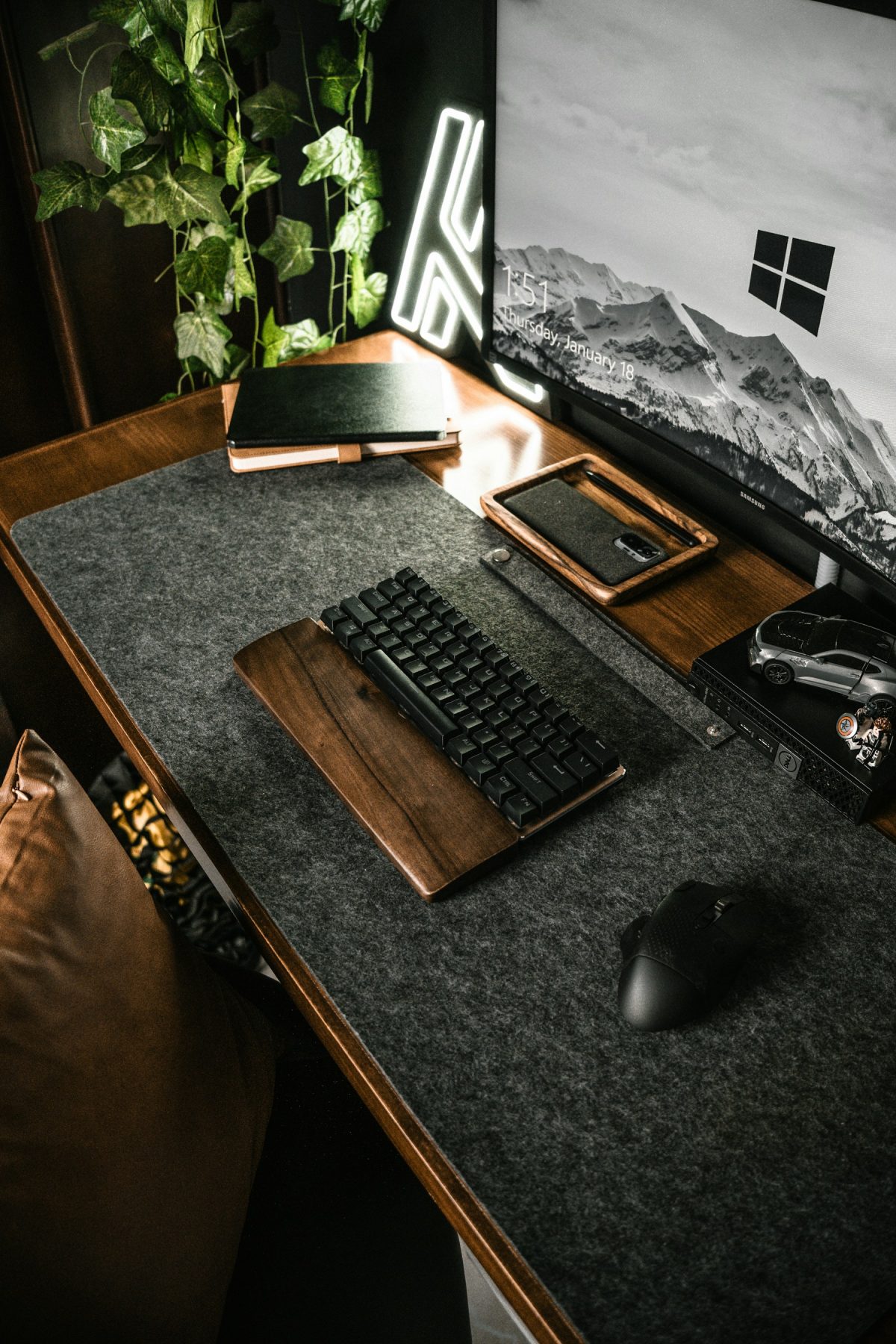
Inspect the keyboard feet. Raising the back is useful only if it helps your wrists stay neutral; fold the feet down if they increase upward bending. A palm rest is not proof of a comfortable arrangement. Judge the position while typing and switching tasks, rather than from a posed photograph. The cover is an illustrative workspace, not a prescription for where your hands should rest.
Separate a hard-to-control pointer from a hard-to-find one
If you can see the pointer but repeatedly pass the target, try speed first. Open Settings > Bluetooth & devices > Mouse. Record Mouse pointer speed, then move its slider a small amount. Microsoft documents this route in Change mouse settings. Leave other controls unchanged during this comparison.
Pick several ordinary targets in the open document: a toolbar button, the start of a line, and a window edge. Move between them at your usual pace. Lower speed if you repeatedly overshoot; try higher speed if crossing the screen requires repeated lifting and repositioning. Keep the change only if both travel and selection become easier. Restore the recorded position if precision worsens.
If you lose the pointer against the page, open Settings > Accessibility > Mouse pointer and touch. Record the selected Mouse pointer style and the Size slider position before changing either. The reference image shows these initial controls with the white style selected; it does not show a completed adjustment.
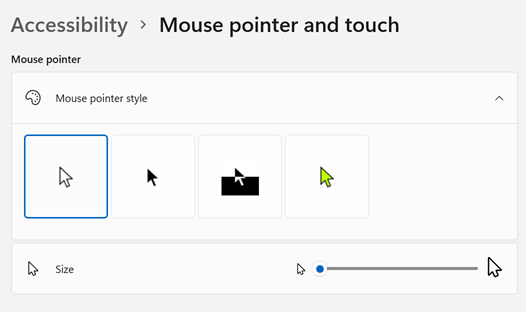
Microsoft Windows 11: record the current pointer style and Size before adjusting them. This official initial-state example has the white style selected and Size near the smaller end; it does not show a changed result.
Version notes
Current Microsoft Windows 11 visibility guidance links this Mouse pointer and touch pane and documents changing pointer color and size. Exact Windows build is undisclosed; image shows the initial controls rather than a completed comparison.Try a more visible style or a modest size increase, following Microsoft’s visibility guidance. Check the pointer against both the document and a dark toolbar. You want to locate it without obscuring the thing you are selecting. Restore the previous style or size if the new choice gets in the way. This is separate from enlarging the text insertion cursor.
Make a wheel movement and a click mean what you expect
Return to Bluetooth & devices > Mouse. Under Scrolling, choose Multiple lines at a time, then adjust Lines to scroll at a time. Save the original value. Use a long page with clear headings and compare one wheel notch before and after the change.
For a hypothetical starting point, compare three lines with six: six requests twice as many lines per notch. That is not a guaranteed pixel distance or a productivity gain; judge the actual page. If you keep scrolling backward to recover the sentence you were reading, reduce the amount. If a whole-screen jump is intentional, the alternative One screen at a time may suit that task.
For clicks, check Primary mouse button on the same page. Choose the button that suits the hand you use. After switching, use the newly primary button to operate menus, including reversing the change. Practice in the disposable document before returning to important work.
If two deliberate clicks do not open folders reliably, choose Additional mouse settings > Buttons and move Double-click speed toward Slow; select OK. Try opening a harmless folder. If it still fails, compare with another mouse before treating every missed action as a timing problem.
Choose keyboard assistance by symptom
Open Settings > Accessibility > Keyboard. Microsoft’s input-device accessibility guide describes three useful options here. Try one at a time and return to the same document after each change.
- Holding a shortcut is awkward
Try Sticky keys, which lets you enter a multi-key command sequentially. In your disposable document, press and release Ctrl, then press A. The text should become selected. Click in the document to clear the selection. Turn Sticky keys off again if sequential commands are unwanted.
- Caps Lock surprises you
Try Toggle keys for sound feedback when Caps Lock, Num Lock or Scroll Lock is pressed. In the document, toggle Caps Lock and type a short sample. Check that the feedback is useful with your normal audio setup; it will not automatically correct text already entered.
- Brief or repeated presses create unwanted input
Try Filter keys, which can ignore brief or repeated keystrokes. Type ordinary words containing doubled letters, such as “letter” and “coffee.” If intended characters disappear or typing feels delayed, return to Keyboard and restore its previous state. This feature changes input handling; it does not repair a failing switch.
If the physical keyboard becomes difficult to use during adjustment, use the mouse to enable On-screen keyboard on this page. Its visible keys provide another way to enter text while you restore the setting. It is a fallback for navigation, not proof that the hardware is healthy.
Keep a setting only after returning to real work
Finish one ordinary work session before deciding the setup is better. Note the task and the remaining annoyance rather than assigning a vague comfort score. For example: “Selection is easier, but I still lose my place when scrolling.” That points to the next single adjustment without undoing a useful speed change.
Keep a short record of the settings you retained and their previous values, especially on a shared computer. If a problem appears, undo the most recent change and repeat the same harmless task. Stop adjusting software when the symptom is intermittent disconnection, a physically sticking key, or a button that fails even with another timing setting; those observations call for hardware or connection troubleshooting.
Sources, versions & scope
The steps describe the documented controls and expected checks; they are not a claim that every device or software release has been physically tested. Platform and version differences are stated with the procedure.