Read past the plug
A cable package can promise 240W and still be a poor choice for an external SSD or a monitor. The number may be perfectly accurate. It answers a power question, while you are asking a data or video question.
Read a USB-C description in three passes: how much power the cable can carry, which data connection it supports, and which display path it can serve. USB-C identifies the connector; USB-IF explicitly distinguishes that connector from the capabilities implemented behind it. Its documentation also recognizes USB 2.0 Type-C cables that carry power and USB 2 data without supporting USB 3.2, USB4 or Alternate Modes. USB-IF’s terminology guidance makes that separation clear.
Two actual manufacturer descriptions make a useful reading exercise. These are documented claims, not results from testing either cable.
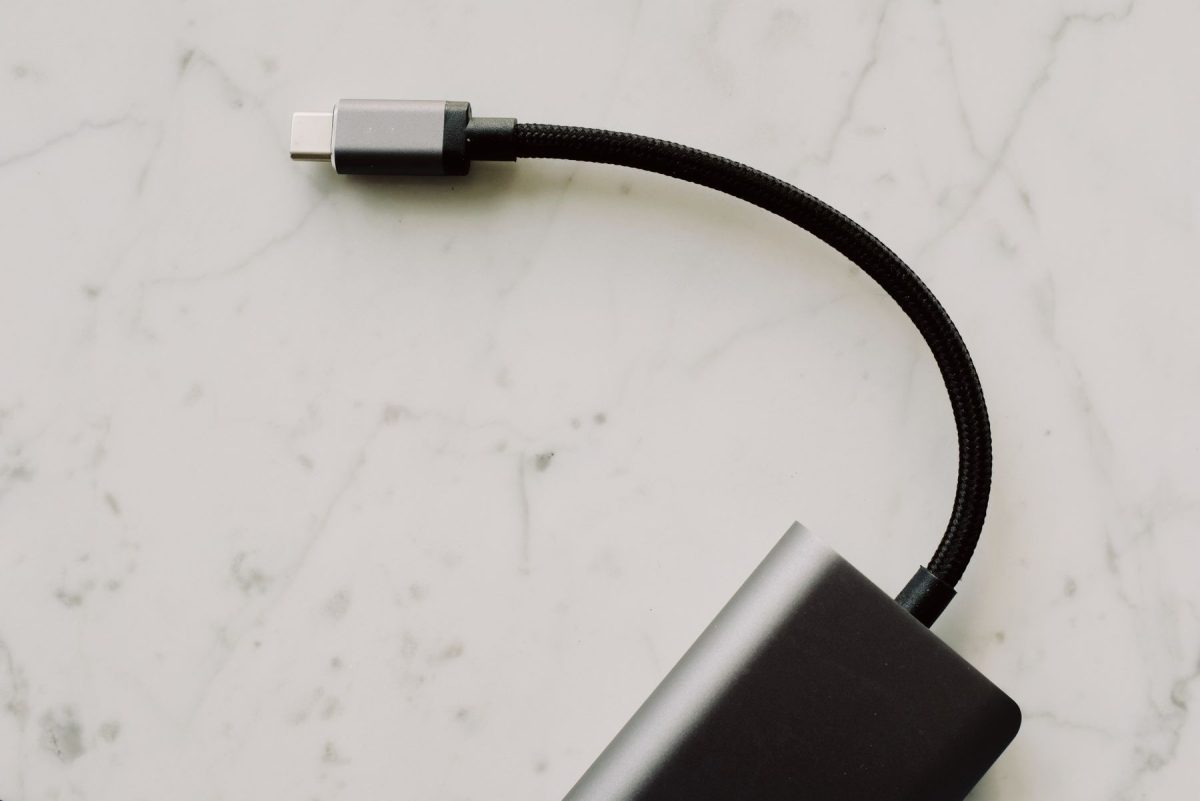
Annotate two real descriptions
Apple’s 240W USB-C Charge Cable, 2 meters lists charging up to 240 watts and data transfer at USB 2 rates. Underline those as separate facts. The large power rating has not increased the stated data capability. Nor does the listing establish a native monitor connection; USB-IF’s USB 2.0 Type-C category does not include Alternate Mode support.
Now read Satechi’s AP-YCR100K Right-Angle Data & Charge Cable guide. It separately specifies up to 240W charging, up to 20Gbps data and one display at up to 4K at 60Hz. It also requires DisplayPort Alt Mode support at the host’s USB-C port for video. Those extra statements supply evidence that the wattage alone could never provide.
| Question | Apple 240W charge cable | Satechi AP-YCR100K | Still needed elsewhere |
|---|---|---|---|
| Power? | Up to 240W | Up to 240W | Compatible charger output and receiving-device requirements |
| Data? | USB 2 rates | Up to 20Gbps | A mutually supported mode at both endpoints and every intervening data port |
| Video? | USB 2 Type-C is not an Alt Mode cable | One display, up to 4K at 60Hz; host Alt Mode required | Supported source output, monitor input and any adapter or dock limits |
The table describes two products, not two universal cable classes. Keep the model and length attached to each record. A similar product name or another length deserves its own specification check. Also avoid reading a list of maximum capabilities as a promise that every maximum operates simultaneously in your arrangement.
Power: a ceiling with conditions
On a cable, watts describe carrying capability. On a charger, they describe available output under stated conditions. On a laptop specification, a charging requirement describes what that laptop needs or accepts. Copying the largest of those numbers into all three fields loses the information you need.
USB Power Delivery allows compatible equipment to agree on power: the source offers capabilities and the receiving device requests an available option. A higher-rated cable does not force its maximum into a phone. USB-IF describes both increased power capability and devices negotiating for only the power they require in its Power Delivery overview.
For a charger label, find the output for the particular socket you will use. Keep any voltage/current combinations or required charging mode alongside the wattage. If several devices will share the charger, look for the manufacturer’s output allocation for that combination of ports. For a dock, distinguish power entering the dock from power available to the computer. Ask for those missing figures rather than assuming that the number on the power brick reaches the laptop unchanged.
A useful inventory entry might therefore read: “Cable rated 240W; charger USB-C port C1 output documented separately; laptop’s supported charging mode still to verify.” That unfinished sentence is more useful than an unsupported claim that the whole setup delivers 240W.
Data: replace “fast” with a mode
A product page that says “fast charging and syncing” still leaves the data question open. Look for an explicit rate or USB mode. Keep the units intact: Gbps means gigabits per second, while a file-copy window may report megabytes per second. These are not interchangeable readings.
For orientation, 480 megabits per second divided by eight is 60 megabytes per second. That is a unit conversion, not a prediction for copying files. Apple identifies 480Mbps as USB 2.0 speed in its comparison of charge and Thunderbolt cables. Protocol overhead and the storage workload leave less room for file payload than the headline link figure suggests.
For an SSD connection, record the computer port, cable, any dock’s upstream connection, the dock port used by the SSD and the SSD interface. A 20Gbps cable cannot supply a missing 20Gbps mode at either endpoint. Equally, two products advertising the same headline rate still need compatible connection modes; the shared number alone does not establish compatibility.
Write the intended task beside those specifications: “copy camera footage to this SSD” is a useful requirement. A cable chosen for a keyboard has a different job. You need enough documented capability for the actual device rather than a rule that every cable in the drawer must carry the largest available number.
Video: name the route to the screen
For a direct USB-C monitor connection, look for DisplayPort Alt Mode in the computer’s port documentation and video input support in the monitor manual. VESA explains that DisplayPort over USB-C can carry video alongside USB data and power through a full-featured cable; it also says device documentation should identify Alt Mode support. A DP symbol can help, but the manual supplies the model-specific evidence. See VESA’s DisplayPort over USB-C FAQ.
If the monitor uses HDMI, add the USB-C-to-HDMI adapter and HDMI cable to the record. The adapter must support the source’s video route and the intended output mode. If the display instead connects through a Thunderbolt dock, use that dock’s host compatibility and display specifications; do not silently substitute the assumptions for a direct Alt Mode connection.
Record the requested resolution, refresh rate and screen count together. “4K” leaves the refresh rate unanswered, and “two displays” leaves their modes unanswered. Dock documentation may also specify host or operating-system conditions. Preserve those conditions in the inventory rather than treating a cable’s display claim as a guarantee for every Windows PC or Mac.
Give the connection an address
Start an inventory with one complete route you actually need. Give each loose cable a short identifier on a tag, then save its manufacturer page or specification beside that identifier. Use a note with the following fields; no special utility is required.
- Job and endpoints
- Computer model and exact port location; receiving device model and exact input.
- Physical route
- Cable identifier, model and length; each dock or adapter; the named socket used on each accessory.
- Three capability entries
- Power rating and charging conditions; data mode and rate; video route and requested display mode. Use “unknown” for missing documentation.
- Evidence and observation
- Manufacturer URL and date checked; separately, any result you personally observed with that precise arrangement.
For a hypothetical desk, the route might be “laptop left USB-C port → cable C1 → dock host port → dock HDMI output → cable H1 → monitor HDMI 1.” Draw a second route for power entering the dock. If an SSD attaches to it, add that branch too. This exposes which specification belongs to which connection without pretending that the dock’s sockets all do the same thing.
When inspecting a cable’s markings, USB-IF’s current certification requirements distinguish 60W or 240W power marks from data-rate markings. High-Speed USB 2.0 cables are an exception to the mandatory data-rate marking rule. A power-only mark therefore does not establish fast data support. Conversely, an older cable lacking current marks is not automatically defective. Match it to traceable documentation, and retain “unknown” when you cannot.
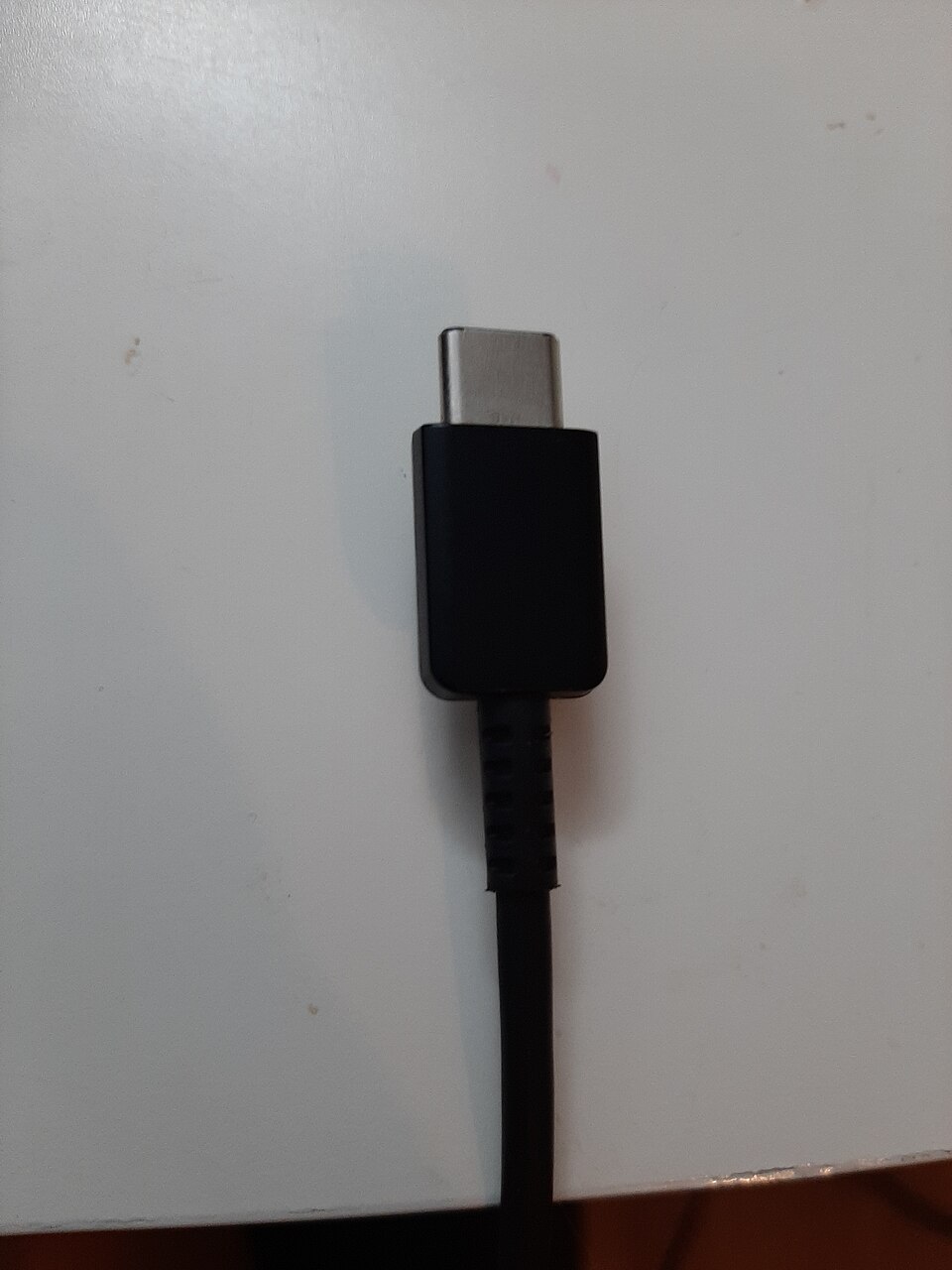
This real USB Type-C plug has no visible wattage or data-rate marking. Record an unknown rating rather than inferring capability from connector shape, colour or cable thickness.
Version notes
Reference photograph from 2020. No speed, power or video capability has been established for the photographed cable.Keep specifications separate from observations: “manufacturer lists 20Gbps” and “this pairing copied my folder” answer different questions. No measurement is supplied here. If you later change the physical route, save work and eject attached storage first, preserving original files. End the record with the exact cable and port you intend to use for each job; leave unsupported capabilities unclaimed.
Sources, versions & scope
The steps describe the documented controls and expected checks; they are not a claim that every device or software release has been physically tested. Platform and version differences are stated with the procedure.
- USB-IF: USB Type-C and USB 2.0 Type-C Cable and Connector Language Usage Guidelines
- USB-IF: Cable power rating logo guidance
- Apple: System Information user guide
- Microsoft: Fix USB-C problems in Windows
- Apple: 240W USB-C Charge Cable (2 m)
- Satechi: Quick Start Guide - Right Angle Data & Charge Cable | AP-YCR100K
- USB-IF: USB Charger (USB Power Delivery)
- VESA DisplayPort: FAQ, DisplayPort Over USB-C
- USB-IF: Cables and Connectors, USB-C to USB-C Cable Logo Requirements
- Apple Support: About the Apple Thunderbolt 3 (USB-C) Cable