A missing window is a reason to recover your workspace before restarting anything. You may still have an unsaved document open on a display Windows thinks is available. This guide covers Windows 11 with a laptop screen and one external monitor, or a desktop with two monitors. Start with recovery if something has already disappeared; otherwise begin by arranging the screens.
Bring the missing window back first
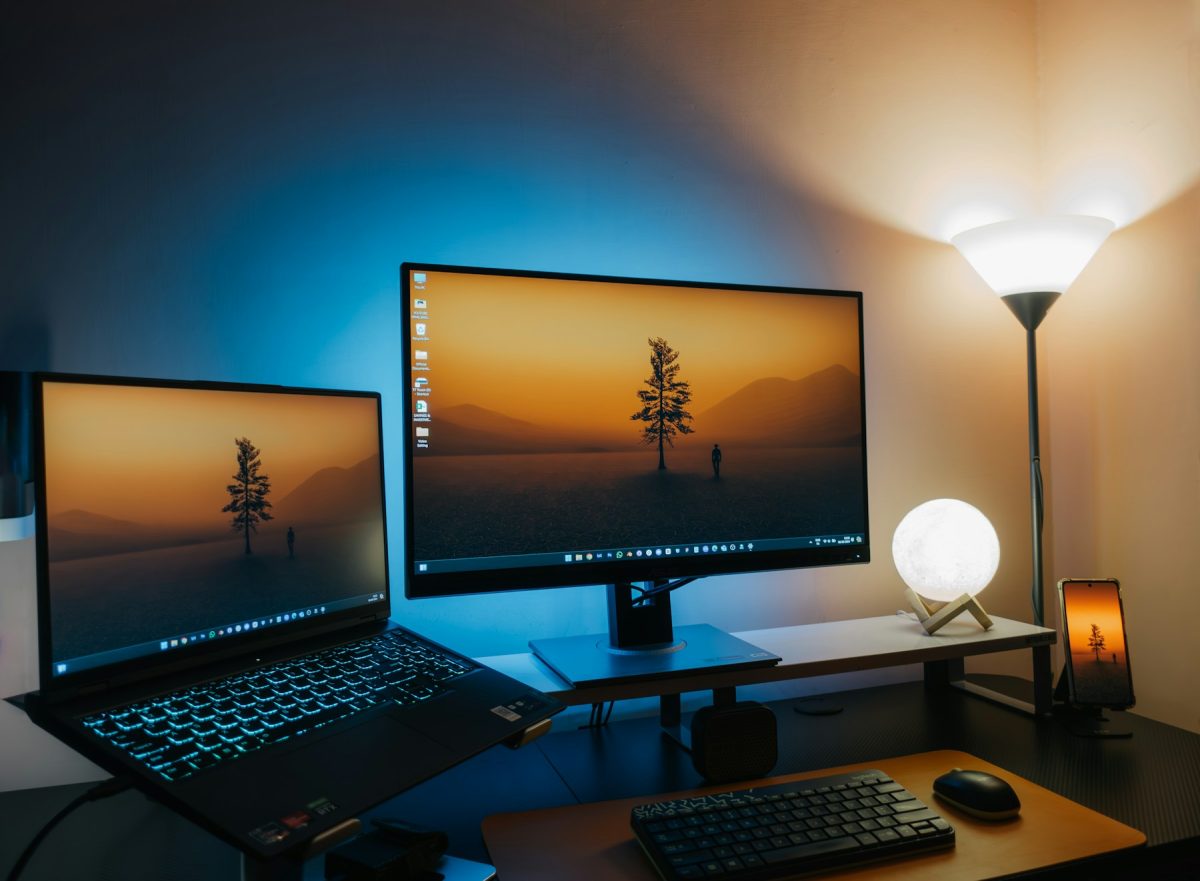
Keep the computer awake and leave the app running. Notice whether the other screen has a picture, is showing “No signal,” or has been unplugged. Those observations determine whether you are moving a window between working displays or repairing the display connection.
- Hold Alt and press Tab until the missing window is selected, then release both keys. Choose the particular document thumbnail if the app has several windows.
- With two displays active, press Windows + Shift + Left arrow to move that window to the monitor on the left, or Windows + Shift + Right arrow for the right. Try the opposite direction if necessary. The expected result is the same open document appearing on the visible screen.
- If it appears but its title bar remains awkward to reach, press Windows + Up arrow to maximize it. Save your work once you can see what you are saving.
These are default shortcuts in Microsoft’s keyboard reference. An app can handle keys differently. If nothing happens, select the intended window again before repeating; repeatedly moving the wrong active window makes the diagnosis harder.
If the external screen is unavailable, a laptop offers another recovery route: press Windows + P, then use the arrow keys to choose PC screen only and press Enter. Inspect the laptop screen and select the missing app again. This temporarily removes the extended workspace. On a desktop, use this only when you know the display that remains enabled is visible; otherwise restore the monitor connection first. Return to Extend when both screens work again.
If one particular app still refuses to appear, reconnect the original monitor when possible and move its window onto the screen you will keep. Save before closing and reopening it. Do not end the process merely because its window is invisible: forcing it closed can discard the work you were trying to recover.
Make the screen map match the desk
Connect and power both displays. Press Windows + P → Extend for independent workspaces; Duplicate shows the same content on both. Open Start → Settings → System → Display. Select Identify, then match each onscreen number to its rectangle. Drag the rectangles into the same relative positions as your physical screens and select Apply.
In Microsoft’s example, display 1 is selected below displays 3 and 2; Identify and the display-mode menu sit below the map. It illustrates how to read the diagram, not a layout to copy. Your two-screen setup should show the displays Windows detects.
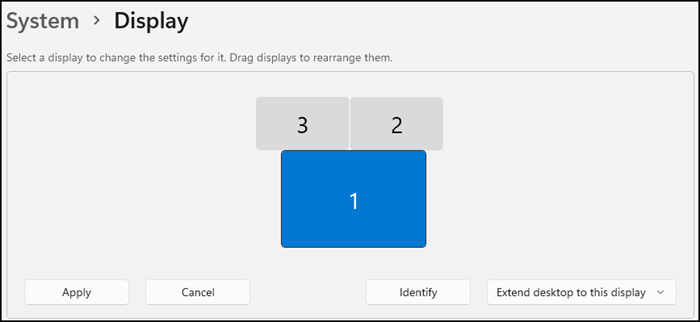
Read the map before changing it: Microsoft’s example has display 1 selected below two other displays. Match your own numbered rectangles to your desk rather than copying this three-display arrangement.
Version notes
Checked 2026-10-31. Exact unchanged vendor-supplied image embedded under the Windows 11 tab of Microsoft’s current resolution and layout guide; Windows 10 uses separate images. This shows map inspection, not a completed change or live capture. No precise capture date or OS build verified.Now move the pointer through the middle of the shared edge in both directions. Drag an ordinary window across, then return it. If you must move left to reach a screen sitting on your right, revisit the map. If crossing works only near one corner, inspect the rectangles’ vertical alignment.
For example, suppose your laptop sits left of a monitor on a stand. A hypothetical layout with the laptop rectangle at the upper right sends the pointer in an unexpected direction. Move that rectangle left of the monitor rectangle, then adjust its height until the crossing point feels predictable. You are testing a usable boundary, not measuring the stand’s height with the diagram.
Keep a note or phone photograph of a working map before experimenting further. To undo a layout change, drag the rectangles back and apply again. Changing several things at once makes it difficult to tell whether an improvement came from arrangement, scaling or the connection.
Fix oversized text without breaking the layout
A window that looks enormous on the second screen is a different problem from a window you cannot reach. In Display settings, select the affected display before changing anything under Scale & layout. Record its current Scale and Display resolution.
Use the entries marked Recommended as your starting point. Scale changes the size of text and apps; resolution changes the pixel dimensions being displayed. Lowering resolution can make text less sharp or produce stretching and borders. Microsoft’s resolution and layout guide treats these as separate controls.
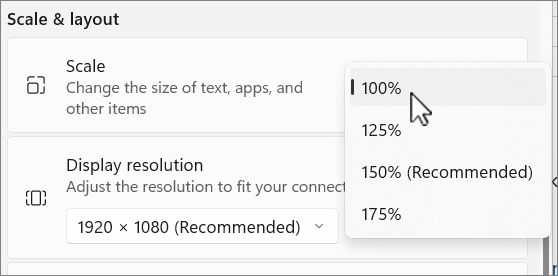
Windows 11: Scale offers presets separately from Display resolution. Microsoft’s example has 100% selected and labels 150% Recommended; the resolution field reads 1920 × 1080 (Recommended). Use your selected screen’s own recommendations.
Version notes
Current Microsoft Windows 11 support reference for Display > Scale & layout > Scale. The menu is open with the selection marker at 100%; 150% is labeled Recommended. Available values depend on the display. Exact Windows release build and capture date are not disclosed.After one change, move the same document between screens and inspect its text, title bar and bottom buttons. A useful result is a readable window whose controls you can reach on either display. If it is worse, restore the recorded value before trying another setting. Do not force both screens to use identical numbers simply because they are connected to the same computer.
Give undocking a predictable outcome
In Settings → System → Display → Multiple displays, enable Remember window locations based on monitor connection and Minimize windows when a monitor is disconnected. Microsoft documents these in its multiple-monitor guide: external-screen windows minimize on undocking and return when you reconnect.
Check the behavior with expendable work before relying on it during a deadline. Put a blank document on the external monitor and another window on the laptop. Save anything important, disconnect the display cable, then select the document from the taskbar. Reconnect the same setup and observe where both windows return. This is a suggested check, not a claim that every app preserves its position perfectly.
If a dock cable also connects storage, finish transfers and safely eject those drives before unplugging it. Record any window that repeatedly reopens out of reach. If all other apps behave, troubleshoot that app’s window placement rather than repeatedly rearranging the whole desktop. You can undo the disconnect preferences by restoring their previous checkbox states.
When the problem is the screen connection
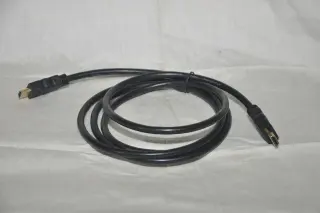
A powered monitor does not necessarily mean Windows has detected it. If its rectangle is missing, open Display → Multiple displays → Detect. If that fails, check the video cable at both ends. Try another known-good cable, or test the monitor with another computer. If practical, bypass the dock with a compatible direct connection, safely disconnecting any attached storage first.
These isolation steps follow Microsoft’s external-monitor troubleshooting guidance. Change one connection at a time and note whether the display appears in Settings. A cable swap that restores detection is more informative than repeatedly dragging windows toward a black screen.
Stop once the pointer crosses predictably, the recovered document is visible, and your disconnect check has an acceptable result. If detection remains intermittent, give support the computer, monitor and dock models, the connection used, and whether a direct connection worked. Keep your window-recovery shortcut handy while the connection fault is investigated.
Sources, versions & scope
The steps describe the documented controls and expected checks; they are not a claim that every device or software release has been physically tested. Platform and version differences are stated with the procedure.