An old phone can earn a permanent place beside a workbench or in a kitchen: a small library of instruction manuals, recipes and reference sheets that opens without a connection. Giving it one job also makes it easier to notice when something essential is missing.
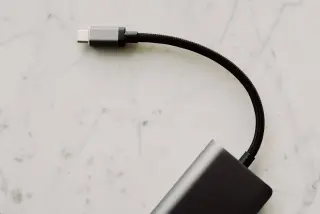
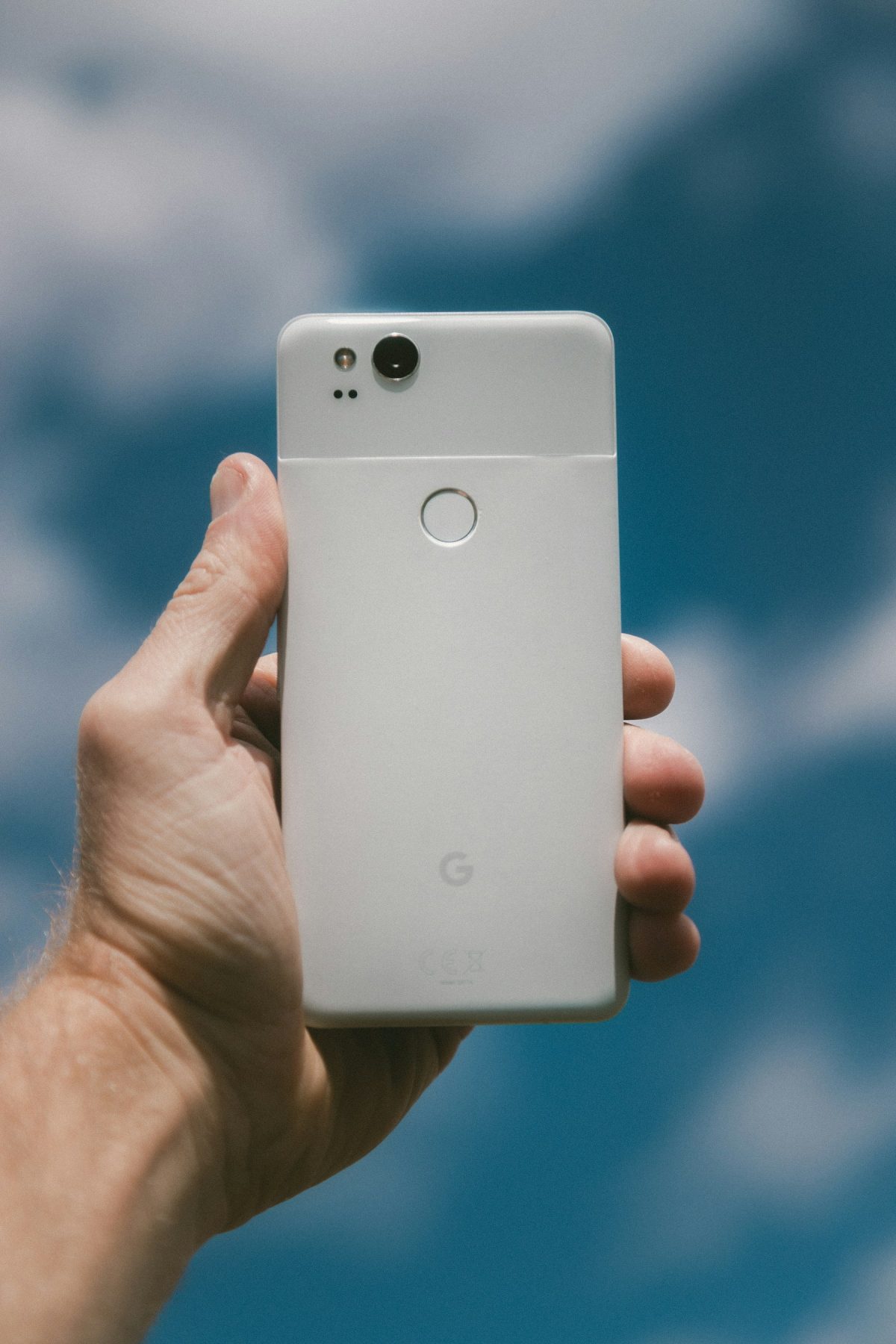
This guide turns an already working, unlocked Google Pixel into an offline document reader, using a Windows PC to copy files. The menu paths follow Google’s current Pixel instructions, which flag some steps as requiring Android 14 or later. Other Android manufacturers and iPhones need different instructions. You will need a data-capable USB cable, local PDF files and an installed app that can open them.
Choose a library you can actually keep offline
Start with documents you own or have permission to copy. A handful of equipment manuals or saved recipe PDFs makes a useful first library. Avoid beginning with a subscription reading service: its downloads may depend on an account, periodic authorization or an active subscription. A thumbnail in a cloud app is not evidence that the document is stored locally.
Give this phone a specific role, such as “workshop manuals,” and collect the source files in a matching folder on your PC. Use names that identify the equipment or task, such as Drill-model-name-manual.pdf. Keep the originals on the PC; the phone will be a convenient working copy, not the only archive.
For a hypothetical library, 40 manuals averaging 5 MB each need about 200 MB before app storage and other overhead. Check the actual folder size in Windows Properties rather than budgeting from that example. A few documents are easier to verify than an entire household’s digital archive.
Prepare the phone without starting over
Check that it unlocks reliably, charges normally and can stay on long enough to read a document. Stop using a phone with a swollen case, separating screen or obvious battery damage; repurposing does not fix damaged hardware. Use a stable stand away from liquids and heat rather than balancing it beside a stove.
While it still has internet access, install available system and app updates and confirm that your PDF reader opens an ordinary local file. This is preparation, not a promise that an unsupported phone becomes secure. Keep banking, primary email and your only authentication method on a maintained device.
Before removing anything, copy out photos, recordings and documents you want to keep and open a sample on the destination. Make sure your everyday phone can handle account sign-ins independently. This project does not require a factory reset, account removal or deletion of authenticator data. Those actions can create recovery problems unrelated to reading manuals.
Leave the screen lock enabled and remember its PIN: you will need it after restarting. For a shared household reader, choose non-sensitive documents. Airplane mode does not conceal existing personal data from someone who can unlock the phone.
Copy a small starter library over USB
Start with two or three PDFs. Google’s Pixel USB-transfer guide documents the connection controls; copying these files avoids relying on a cloud app’s download status.
- Unlock the Pixel and connect it directly to the Windows PC with your USB cable.
- On the phone, open the Charging this device via USB notification. Under Use USB for, select File Transfer.
- In the phone’s storage window on Windows, create a clearly named folder such as
Offline Manualsin the accessible internal storage. Copy your starter PDFs into it; retain the PC originals. - Wait for copying to finish, eject the phone from Windows, then unplug the cable.
If Windows shows no storage, unlock the phone and recheck File Transfer. Try another cable known to transfer data, then another USB port; charging alone does not prove a cable carries data. Google also recommends restarting the device or computer when troubleshooting.
Open Files by Google on the phone. Look under Recents for the newly added PDFs, or use the appropriate Categories entry. Google’s file-viewing instructions describe both routes. Tap a file and choose your installed PDF reader if prompted. Confirm that the title and several pages appear; seeing only a filename is insufficient.
If the reader requests a download, cancel and check that you selected the copied local file. If it cannot open that PDF at all, try a second ordinary PDF while still online. Resolve the reader or file-format problem before copying the full collection. Do not rename an unfamiliar file extension to make it resemble a PDF.
Switch off each connection deliberately
On the Pixel, open Settings → Network & internet and turn on Airplane mode. Google’s network-settings reference confirms this path. You should see the setting enabled, but that is only the first check.
Next, open Network & internet → Internet and turn Wi-Fi off. Then open Connected devices → Connection preferences → Bluetooth and turn Use Bluetooth off. These paths follow Google’s Airplane mode connection guide.
Google explains that Wi-Fi and Bluetooth can remain enabled in Airplane mode when the phone remembers earlier choices. Check the switches themselves rather than relying on the airplane symbol. For this document-reader setup, leave both off and use the screen directly.
Disconnect the USB cable before testing. Removing a physical SIM is optional and does not disable Wi-Fi or an eSIM. Airplane mode is a reversible operating setting, not a tamper-resistant barrier against someone reconnecting the device.
Prove the library works after a restart
Restart the phone using its normal power menu, unlock it with the PIN, and check that Airplane mode remains on and Wi-Fi and Bluetooth remain off. Reopen Files and launch a copied PDF from there. This is a check for you to perform; no particular phone’s results are assumed here.
- Open a document you did not leave on screen before restarting. Jump to a middle page and a late page, then check a diagram or table at a readable zoom.
- Close the reader and open a second document. Confirm that it needs neither sign-in nor a connection to display its contents.
- Lock and unlock the phone, then return to the document. Check that the stand, brightness and text size work in its intended location.
If only a preview appears, or the app demands internet, return to the copied file in Files. A service’s cached preview is not the same as your local PDF. If a genuine local file fails, reconnect temporarily to repair the reader setup or replace the file from the PC, then repeat the disconnected restart check.
Once the starter files pass, copy the remaining library and spot-check it. Keep the home screen simple by placing the reader and Files where they are easy to reach. A note beside the stand can list the folder name and the last library refresh date.
Refresh it without losing the offline habit
Update documents by USB when possible. If you need internet for app or system maintenance, turn Wi-Fi on deliberately, finish the work, then turn it off and repeat the document check. Opening a network connection can also resume background account activity.
Keep charging practical: let the screen sleep between uses and inspect the device periodically rather than leaving a forgotten phone permanently lit. The successful result is modest and useful: the right documents open with connections off, and a separate copy survives elsewhere. To return to normal connected use, turn Airplane mode off and enable the connections you need; the copied library remains until you delete it.
Sources, versions & scope
The steps describe the documented controls and expected checks; they are not a claim that every device or software release has been physically tested. Platform and version differences are stated with the procedure.