First find out how much of the picture is blurry
An external monitor can look soft because Windows is sending the wrong resolution, because one application handles scaling poorly, or because the connection is preventing the intended display mode. Those problems need different fixes. This guide covers a wired external monitor connected to a Windows 11 computer.
Open Settings and an application you normally read, then compare their text on the external screen. Keep the windows fully on that screen. If Settings, window borders and several applications all look soft, start with resolution. If Settings looks clear but one application's menus do not, use the application checks below. If only a photograph, scanned document or streamed video is blurry, compare another file before changing the monitor.
Save your work and keep the laptop open if it has a built-in display. Write down the monitor model, cable route and starting settings as you go. Change one thing at a time and compare the same paragraph after each change; otherwise you cannot tell which adjustment helped.
Give the panel its native pixel grid
A panel has a fixed number of physical pixels. Feeding it fewer pixels can require the picture to be stretched. Microsoft warns that lower-than-native resolutions can soften text or change how the picture fits.
- Open Start → Settings → System → Display. Select the numbered display representing the external monitor; use Identify if you are unsure which number belongs to it. The selected panel is highlighted.
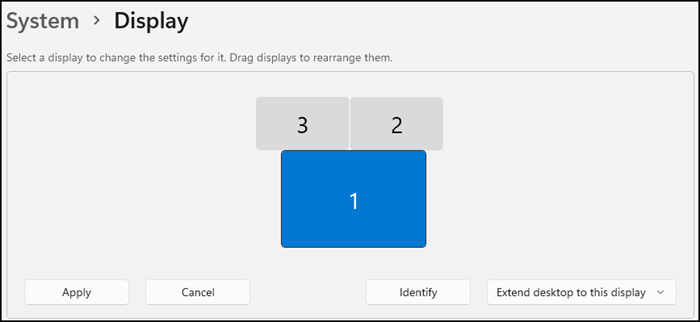
Visual 01 · Microsoft Windows 11 Select the external monitor’s numbered panel. Identify helps match numbers to physical screens. Display 1 is selected in Microsoft’s example; your arrangement can differ.
© Microsoft Corporation. Official Microsoft Windows 11 support image; copyright retained by Microsoft. Image source · Usage termsVersion notes
Current Microsoft Windows 11 support reference, checked 2026-10-31. Exact Windows release build and original capture date are undisclosed. Illustrates only the named control, not a tested reader setup. - Under Scale & layout, record Display resolution and Scale. Compare the resolution with the native resolution in your monitor's manual or official specifications.
- In Display resolution, choose the native value, normally marked Recommended. Keep the change only if the picture is visible and usable. Compare the same text again.
Dell documents the confirmation safeguard: choose Keep changes to accept; without a response, Windows restores the previous setting after 15 seconds. If the screen goes black during this confirmation, wait instead of confirming blindly. To undo an accepted change, select the recorded resolution again. If the display remains unavailable, restore the previous physical connection and use the laptop screen.
For a hypothetical 2560 × 1440 monitor receiving 1920 × 1080, the picture must expand by 2560 ÷ 1920, or about 1.33 times, across its width to fill the panel. That does not create the missing detail. Setting 2560 × 1440 restores a matching pixel grid; enlarging text afterward is a separate task.
If the native mode is absent, or Recommended disagrees with the manual, skip to the connection checks. Selecting successively larger unsupported modes is not a useful test.
Make text larger without reducing resolution
Native resolution can make controls smaller than you want. Return to Scale & layout → Scale for the selected external display and choose the offered preset marked Recommended as a starting point. Keep Display resolution at the native value. Compare readability, then try another offered preset if necessary; record each value so you can return to the original percentage.
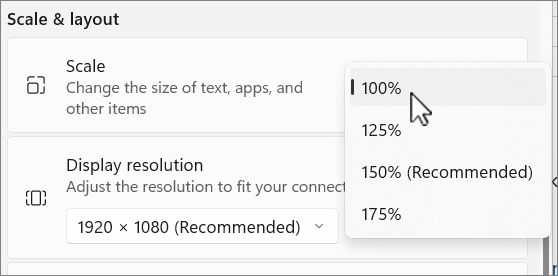
Use an offered Scale preset while keeping the native Display resolution. In this example 100% is selected and 150% is recommended; use the recommendation for your own screen.
Version notes
Current Microsoft Windows 11 support reference, checked 2026-10-31. Exact Windows release build and original capture date are undisclosed. Illustrates only the named control, not a tested reader setup.The official example image shows several percentages, but your choices and recommendation may differ. Use the ordinary presets for this diagnosis. Custom scaling adds another variable. A larger percentage should enlarge text and controls while leaving the panel's output resolution intact.
Test the Settings window and your reading application again. If both are now satisfactory, stop. If only the application remains soft, changing the whole desktop repeatedly is unlikely to isolate its problem. The separate Scale and Display resolution controls let you keep size and output resolution distinct.
When one application goes fuzzy between screens
Move the affected window entirely onto each screen in turn, comparing its menus as well as its document. Note whether the blur follows the application, appears only on one monitor, or begins after docking. Also compare another application displaying ordinary text.
Microsoft's high-DPI documentation explains that some desktop applications draw at a fixed scale. Windows may stretch their already-drawn contents to fit another display's scale, which can blur them. Applications that handle scaling per monitor can redraw appropriately. A different percentage on the second screen therefore does not by itself prove the monitor is faulty.
Save the document, close the affected application completely and reopen it with the monitor connected. Retry the same reading task. If the problem persists, check the application's official update channel and support guidance for display scaling. Avoid changing compatibility overrides for every program at once: you could replace blur with tiny controls or clipped dialogs without fixing the cause.
If the program remains usable on the laptop display, keep it there temporarily. Record its name and version, both monitors' scale values and whether reopening changed the result. That gives application support a reproducible case.
If the right resolution never appears, simplify the route
First press Windows key + P → Extend if you are duplicating the laptop screen. Duplicate mode uses a resolution supported by both displays; Extend allows independent resolutions. Reselect the external monitor in Display settings and check again. To undo this diagnostic change, return to Windows key + P and choose Duplicate.
If the mode is still missing, follow Microsoft's connection-isolation advice: check that the cable is secure, bypass a dock or adapter where the computer has a suitable direct video output, and try a known-working cable. Before disconnecting a dock, save work and safely eject any attached storage. Use the laptop's charger if the dock normally supplies power.
Repeat the resolution check after each change. If the native mode appears through the direct connection, the dock route deserves investigation. This does not identify which component is responsible. Record the exact laptop, dock and monitor models and ask their manufacturers to confirm the supported resolution with that connection and number of screens. An unmarked USB-C socket or a cable's appearance cannot establish its video capabilities.
If the experiment makes things worse, reconnect the original route. A borrowed cable is useful evidence before a purchase; replacing several components together hides which change mattered.
Know when to stop adjusting Windows
If the setup became blurry suddenly, save work and restart the computer. Check Settings → Windows Update → Check for updates if resolution choices changed unexpectedly; Microsoft identifies the graphics driver as a possible cause. Keep driver removal or rollback for model-specific troubleshooting, especially on a managed work computer.
With native resolution restored, compare the monitor using another computer if one is available. Keep the same file and note the connection used. Clear text from the second computer points toward the first computer or its route; the same problem on both makes the monitor or a shared component worth investigating. These comparisons narrow the fault without proving a particular part is defective.
Finish with a short record: native resolution available or missing, all applications affected or only one, direct connection result, and the settings you restored. If you seek support, send that record with the equipment models. It is more actionable than a photograph of small text or the description “my second screen is blurry.”
Sources, versions & scope
The steps describe the documented controls and expected checks; they are not a claim that every device or software release has been physically tested. Platform and version differences are stated with the procedure.