Should I stop using it?
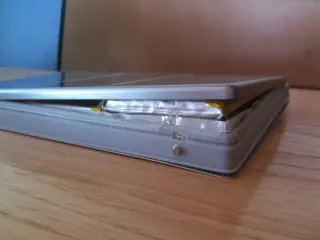
Before asking why a device is warm, look for a reason to end the investigation. A lifting screen, separating enclosure, suspected swollen battery, scorching, leakage or unusual chemical smell puts the device outside an ordinary workload check. Stop using and charging it; disconnect power only if you can do so safely. Do not press the case back together, open it or run a demanding app to drain the battery. Ask the manufacturer how to arrange safe service and transport. If there is smoke, fire or immediate danger, move away and obtain emergency assistance.
Dell’s swollen-battery guidance says swollen batteries must not be used and describes approved return packaging. Its discharge instructions belong to that manufacturer’s handling procedure; they are not a general experiment for a damaged phone. A cooler enclosure does not establish that a damaged battery is safe again.
A temperature warning is another boundary. For an iPhone or iPad displaying the temperature warning screen, Apple advises turning it off, moving it away from sunlight to a cooler environment and allowing it to cool. Google tells users of an excessively hot Pixel to disconnect its power source, move it somewhere cooler and stop using it until it cools. Neither instruction asks you to reproduce the problem first.
Why does ordinary work make it warm?
A device uses electrical energy to calculate, communicate, illuminate its display and charge its battery. Some of that energy becomes heat. The heat must travel through the device and into its surroundings. A warm enclosure can therefore accompany useful work; it does not identify which component generated the heat or prove that a component has failed.
Recording video combines the camera, image processing, storage and screen. A hotspot keeps communication hardware busy. Setup and restoration can continue working when you are barely touching the device. Google lists these among activities that can warm a Pixel, particularly while charging. The question to ask is whether the warmth has a plausible context and whether it settles after that context ends.
That explanation has a limit: you cannot infer battery condition from the fact that a demanding app was open. Workload is a possible explanation, not clearance to ignore physical changes or discomfort.
Why is the same task different today?
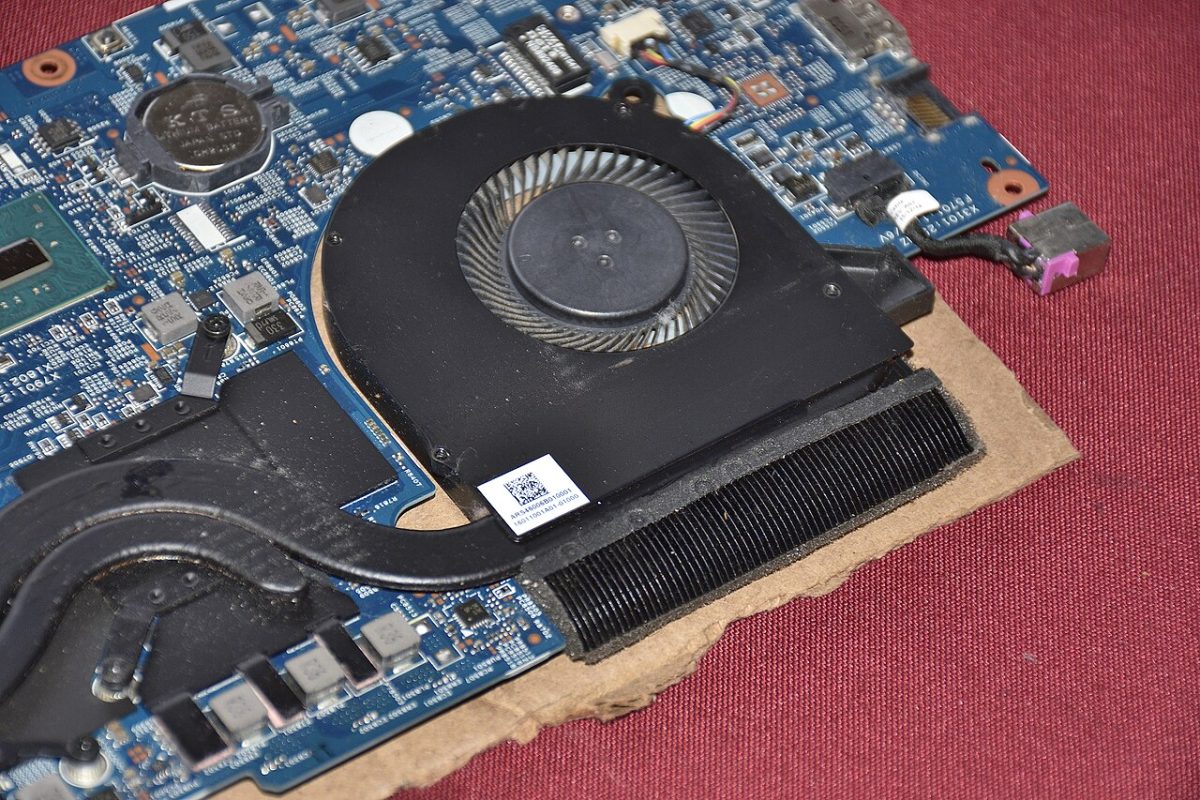
The surroundings affect how readily heat can leave. A phone navigating in direct sun while charging has a different thermal situation from the same phone indoors. A laptop on bedding has a different air path from one on a clear desk. Several ordinary demands can coincide, so the foreground app alone may be an incomplete explanation.
For a Mac laptop, Apple specifies a stable, well-ventilated work surface, no bedding and no covering over the keyboard. If that model has ventilation openings, leave them clear and do not insert anything into them. Other laptops need their own model’s placement guidance; the existence and location of vents vary.
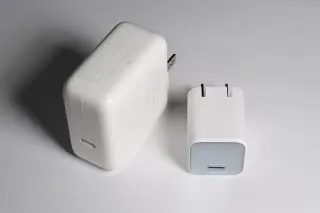
For charging phones, keep the device and power equipment uncovered in a ventilated place. Use a normal, dry location away from direct sun. Do not improvise with ice, water or a refrigerator. Reducing the demands and improving the surroundings are sufficient first changes; there is no need to force a rapid temperature drop.
What can I observe without provoking more heat?
Use this session only for ordinary warmth on an undamaged device, with no active warning and no discomfort handling it. There is no target duration or cooling deadline. If conditions become concerning, end the session immediately.
- Describe what was already happening. On paper or another device, note the task, power source, sunlight and placement. Include whether setup, restoration or an update was in progress. Record the wording of any previous warning without sharing private screen content.
- Make the surroundings suitable. Move an undamaged device out of sun and uncover charging equipment. Put a laptop on its supported work surface. Note these changes together: improving conditions matters more than preserving an experiment.
- Finish one optional activity through its app. For example, in the phone’s Camera app, stop an ongoing recording and confirm that the clip appears in the photo library. If you cannot safely interrupt the task, postpone the observation. Do not interrupt an operating-system installation or assume that returning to the Home Screen stops a transfer.
- Let the device rest without charging if practical. Safely disconnect an undamaged charging setup and leave the screen off. Observe whether ordinary warmth settles before returning to light use. No improvement, worsening warmth or a new warning ends this comparison and warrants manufacturer guidance.
On a supported Pixel, you can also open Settings → Battery → Battery diagnostics → Phone is very warm. Google’s temperature-diagnostics page describes an estimated temperature and a state such as Normal, Warm or Elevated. Availability varies: Google’s pages currently differ on whether support starts with Pixel 6 or Pixel 6a. If the option is absent, keep your context notes rather than installing a substitute thermometer app.
This session can suggest an association with workload or conditions. Because charging, software activity and the environment may change together, it cannot isolate a hardware fault. “It settled after the call ended” is a useful observation; “the battery passed” is an unsupported conclusion.
Why did it dim, slow down or stop charging?
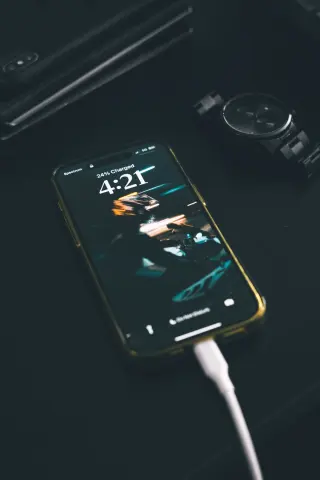
These can be deliberate thermal responses. Apple documents reduced performance, dimming and slowed or stopped charging on iPhone and iPad. A dim screen alone has other possible explanations, so read any accompanying message. A temperature-related charging hold is a reason to let conditions improve, rather than repeatedly reconnecting power.
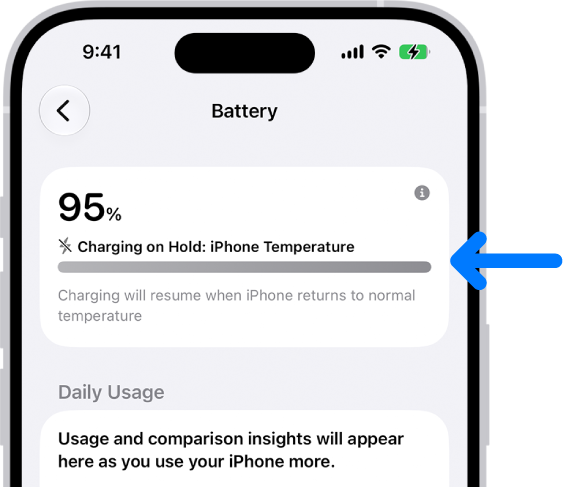
In Apple’s iOS 27 Battery example, Charging on Hold: iPhone Temperature identifies a thermal charging pause. The message says charging will resume at normal temperature; let conditions improve instead of repeatedly reconnecting power. Apple supplied the blue arrow.
Version notes
Official original linked by Apple’s explicitly versioned iOS 27 Thermally Limited Charging guide. Exact capture/minor build is undisclosed. Shows the Battery card with charging paused at 95%, not a Lock Screen or full-screen temperature warning.Google’s Pixel temperature states also describe reduced performance and temporarily paused features at elevated temperatures. The device is reducing demand to help cool itself. Do not disable thermal protections or force higher performance to restore the behavior you expected. Repeated protective shutdowns during ordinary supported use deserve support, even if each restart succeeds.
What if the heat is at the plug?
Treat a damaged cable or discolored connector as its own problem. Apple’s iPhone safety guidance says to stop using damaged charging equipment and warns against charging with moisture present. Do not continue simply because the battery percentage is increasing.
A Pixel’s “Unplug charger” alert has a specific Google procedure: unplug the adapter from the wall, let the phone cool, then disconnect the cable from the phone. Follow it only when safe; if the phone is too hot to touch, contact support from another device. Do not put anything into the port. Burned, melted or corroded ports need a repair route, and damaged cables should be retired. A recurring “Unplug charger” message is also a reason to contact Google.
Can a temperature reading settle it?
A room temperature, an internal sensor and a surface measurement describe different things. A manufacturer’s ambient operating range is guidance about the surroundings, not a universal limit for every internal component. Apple explicitly cautions that third-party Mac temperature apps do not measure enclosure temperature and should not diagnose possible hardware problems.
Your comfort also matters. Apple warns that prolonged contact with a warm device or charger can cause discomfort or injury even within applicable surface-temperature limits. Do not keep a device against your skin to judge it, or sleep on charging equipment.
What should I tell support?
Give the model, software version, exact message and the circumstances: charging method, task, placement and whether warmth persisted after optional work ended. Mention recent repairs or physical changes. An unexplained pattern during light use, persistent fan activity on a suitably placed laptop, or repeated warnings is useful evidence without another stress test.
Preserve a backup only while use remains safe. If damage is suspected, leave the device unused and ask for handling instructions from another device. The most useful final note may simply be: “It warned again on a clear desk during light use; I stopped there.”
Sources, versions & scope
The steps describe the documented controls and expected checks; they are not a claim that every device or software release has been physically tested. Platform and version differences are stated with the procedure.
- If your iPhone or iPad gets too hot or too cold
- Handling swollen Lithium-ion batteries
- Apple: Maximizing battery performance
- Apple: Turn iPhone on or off
- Apple: Check battery usage
- Apple: iPhone and iPad temperature management
- Keep your Mac laptop within acceptable operating temperatures
- Important safety information for iPhone
- Help keep your Pixel phone from feeling too warm or hot
- Check & understand your Pixel’s temperature
- Fix "Unplug charger" or "Liquid or debris" message