Read the reason beside the percentage
A phone that repeatedly stops near 80 percent may be doing exactly what its charging settings request. Before buying a cable or booking a battery replacement, read the charging message on the Lock Screen and open the battery settings. The useful clue is whether the phone names a limit, gives a completion time, or mentions temperature.
Those clues lead to different actions. A chosen limit normally needs an override if you want more charge. A scheduled pause is meant to finish later. A temperature pause needs better conditions, even if you have already selected 100 percent. Changing one setting will not necessarily remove another cause.
- A limit or protection setting is selected
- Check its percentage and decide whether you need to change it for this charge.
- A full-charge time appears
- The phone is managing the schedule. Look for the supported immediate-charge option if you are leaving early.
- A temperature message appears
- Follow that warning before adjusting charge limits.
Record the exact wording before making changes. A note such as “80%, plugged in, full charge expected later” is more useful than “battery broken.” Work through the matching phone section below; Android manufacturers do not share one universal charging menu.
iPhone: separate the limit from the schedule
On iPhone 15 and later, open Settings → Battery → Charging. Check the selected charge limit. Apple offers limits from 80 to 100 percent in five-point steps. If you chose a lower limit, stopping near it is expected; the displayed result can be within a few percentage points of the selection.
For a temporary full charge, open Settings → Battery and tap Charge to 100% when the charge-limit card offers it. Apple's current User Guide illustration shows a 90 percent limit; the same control addresses that chosen limit rather than an overnight schedule.
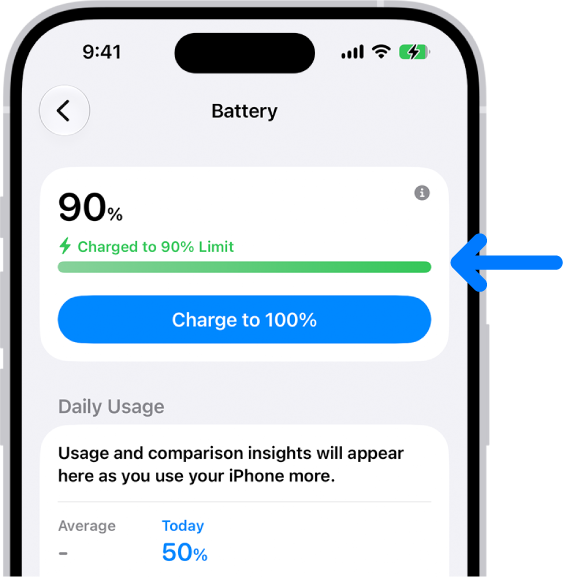
Apple's current example uses a 90% limit. In Settings → Battery, Charge to 100% temporarily overrides the selected limit when offered. The blue arrow is part of Apple's original image.
Version notes
Current iOS 27 User Guide illustration, linked by Set a charge limit on iPhone and checked 2026-10-31. Exact hardware model and minor software build are not specified. Shows a 90% limit, not an 80% measurement; no hands-on test.Alternatively, in Charging, select 100 percent. Apple's current charge-limit guide distinguishes Allow Until Tomorrow, which restores your previous limit at 6 a.m., from Set Limit to 100%, which keeps the new selection. Read the prompt before choosing; if you change the limit permanently, return to this menu to restore your previous percentage.
With the limit at 100 percent, Optimized Battery Charging can still delay the final portion. Its Lock Screen notification gives a completion time. To finish sooner, touch and hold that notification, then tap Charge Now. On iPhone 14 and earlier, the optimization switch is under Settings → Battery → Battery Health & Charging; those models do not have the newer selectable charge-limit feature. See Apple's charging-options guidance.
After an override, look for progress beyond the previous stopping point. An unchanged percentage immediately after tapping does not establish failure: check the message again, particularly for a temperature hold. An occasional charge to 100 percent while a lower limit remains selected can also be normal; Apple uses these charges to maintain accurate percentage estimates.
Pixel: check which optimization you selected
Google's current documented path is Settings → Battery → Battery health → Charging optimization. With Use charging optimization enabled, inspect the selected option. If the menu is missing, consult support for your model and software rather than assuming every Pixel exposes it.
- Limit to 80% prioritizes battery longevity by limiting routine charging. For a full charge now, turn off Use charging optimization, then reconnect if necessary and check the charging status.
- Adaptive Charging aims to reach 100 percent near your usual unplugging time. Its notification shows the expected completion time. Choosing this instead of the fixed limit does not guarantee an immediate full charge.
Return to the same menu afterward, enable optimization and reselect your usual option. Google also documents a full charge every tenth cycle for accurate capacity readings, even with the 80 percent setting enabled. For that automatic process, it asks you to leave the phone plugged in for at least 30 minutes after 100 percent appears. Do not deliberately drain it to zero to force calibration.
Galaxy: inspect Battery protection and its mode
Open Settings → Battery → Battery protection. Samsung also documents a route through Settings → Device care → Battery on applicable devices. Read the mode and percentage actually shown: available controls vary with model and software.
Samsung's current protection guide describes Maximum with selectable limits of 80, 85, 90 or 95 percent on supported software. It also describes Sleep time protection, which pauses at 80 percent during sleep and finishes before waking. Consequently, a phone using Basic with sleep protection can still pause overnight.
To remove the configured limit for a full charge, record your current mode and turn off the Battery protection switch. Samsung's specific troubleshooting page says the switch turns gray when off. Connect the charger and check that the percentage progresses beyond the previous limit. Restore the switch, mode and chosen percentage when the extra charge is no longer needed.
An older Galaxy stopping at 85 percent may have a different protection implementation. Match its own controls and support instructions rather than looking for a slider it does not provide.
A temperature hold takes priority
If the phone reports a temperature hold, selecting 100 percent is not the remedy. Apple explicitly documents that warmth can limit iPhone charging above 80 percent. Temperature protection can also pause charging at other levels, so the percentage alone cannot identify the cause.
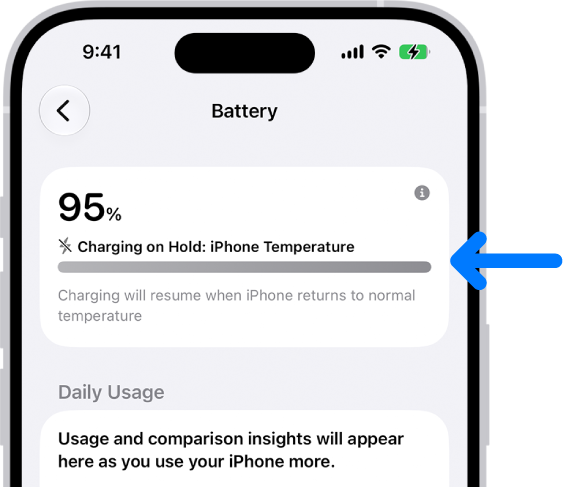
Apple’s iOS 27 example shows Charging on Hold: iPhone Temperature at 95%, with charging set to resume at normal temperature. A thermal pause can occur above 80%; changing a charge limit does not remove this condition. The blue arrow is Apple’s.
Version notes
Official original linked by Apple’s explicitly versioned iOS 27 Thermally Limited Charging guide. Exact capture/minor build is undisclosed. Shows the Battery card with charging paused at 95%, not a Lock Screen or full-screen temperature warning.Stop demanding activity and move an undamaged phone and charger away from direct sun or a hot location. Let conditions return to normal before trying again. For an iPhone displaying the full temperature warning screen, Apple directs you to turn it off, move it somewhere cooler and allow it to cool. Cold conditions can also interrupt charging. Use the maker's guidance for your phone; do not try to defeat its protection.
Once conditions improve, recheck the charging message and your selected limit. A temperature pause and a deliberate cap can coexist. Removing the temperature hold does not instruct the phone to ignore an 80 percent limit.
When the limit no longer explains it
If no limit, schedule or temperature message explains the plateau, check the power connection. Inspect the cable and adapter for damage; stop using damaged accessories. Try a known-compatible, undamaged cable and charger directly at a working outlet. Change one component at a time so you can identify what changes the result. Apple's charging troubleshooting also recommends a normal restart. Persistent failure needs model-specific support rather than a factory reset.
Bring support the model, software version, exact charging message, selected limit and whether the problem persists with the alternate charger. Describe whether charging fails at lower levels too. These observations help distinguish a settings question from a wider charging problem without claiming to diagnose the battery remotely.
Keep the setting that fits your day. In a hypothetical example, someone arriving home with 30 percent after starting at 80 may have room to retain the limit; someone arriving with 5 percent may prefer a higher limit or a full charge before a long outing. Neither example predicts battery lifespan or runtime. The practical endpoint is understanding why charging paused and knowing how to request extra charge, then restore your usual setting.
Sources, versions & scope
The steps describe the documented controls and expected checks; they are not a claim that every device or software release has been physically tested. Platform and version differences are stated with the procedure.
- Apple: About Charge Limit and Optimized Battery Charging on iPhone
- Apple iPhone User Guide: Set a charge limit (iOS 27)
- Google Pixel Phone Help: Get the most life from your Pixel phone battery
- Samsung: Battery protection tips
- Samsung: Galaxy device battery is not charging past 80% or 85%
- Apple: If your iPhone or iPod touch won't charge
- Apple: If your iPhone or iPad gets too hot or too cold