A charger can have enough sockets for your laptop, phone and tablet yet leave the laptop charging slowly when all three are connected. The large wattage on the box rarely tells the whole story. Choose around the combination you will actually use, then check that each device gets an acceptable share.
This guide covers a mains-powered USB-C charger for several devices connected directly by cable. The optional computer check uses a USB-C-charging Mac. Docks, wireless charging pads and power-bank capacity introduce different limits and are outside this comparison.
Write down what must charge together
Put the devices you intend to connect on the desk. Make one row per device with its exact model, recommended charging power, required charging protocol, cable and preferred socket. Use the device maker’s charging documentation; the wattage printed on an old adapter is a useful starting reference, but may not identify every supported charging mode.
Separate two needs: keeping the laptop powered while working, and getting everything charged before departure. If the phone can wait until the laptop finishes, you may need less simultaneous output. If all devices must charge quickly during one short stop, evaluate their combined requirements.
Count USB-C sockets specifically. Three ports could mean two USB-C ports and one USB-A port. That arrangement cannot directly accept three USB-C-to-USB-C cables. Check whether the cables are included, whether they reach your devices, and whether the charger’s shape will obstruct a neighbouring wall socket.
Unplug the charger before inspecting it. Read the socket labels, such as C1, C2 and A, and copy their positions into your list. Match those names to the exact model’s manual; connector shape alone does not establish charging power.
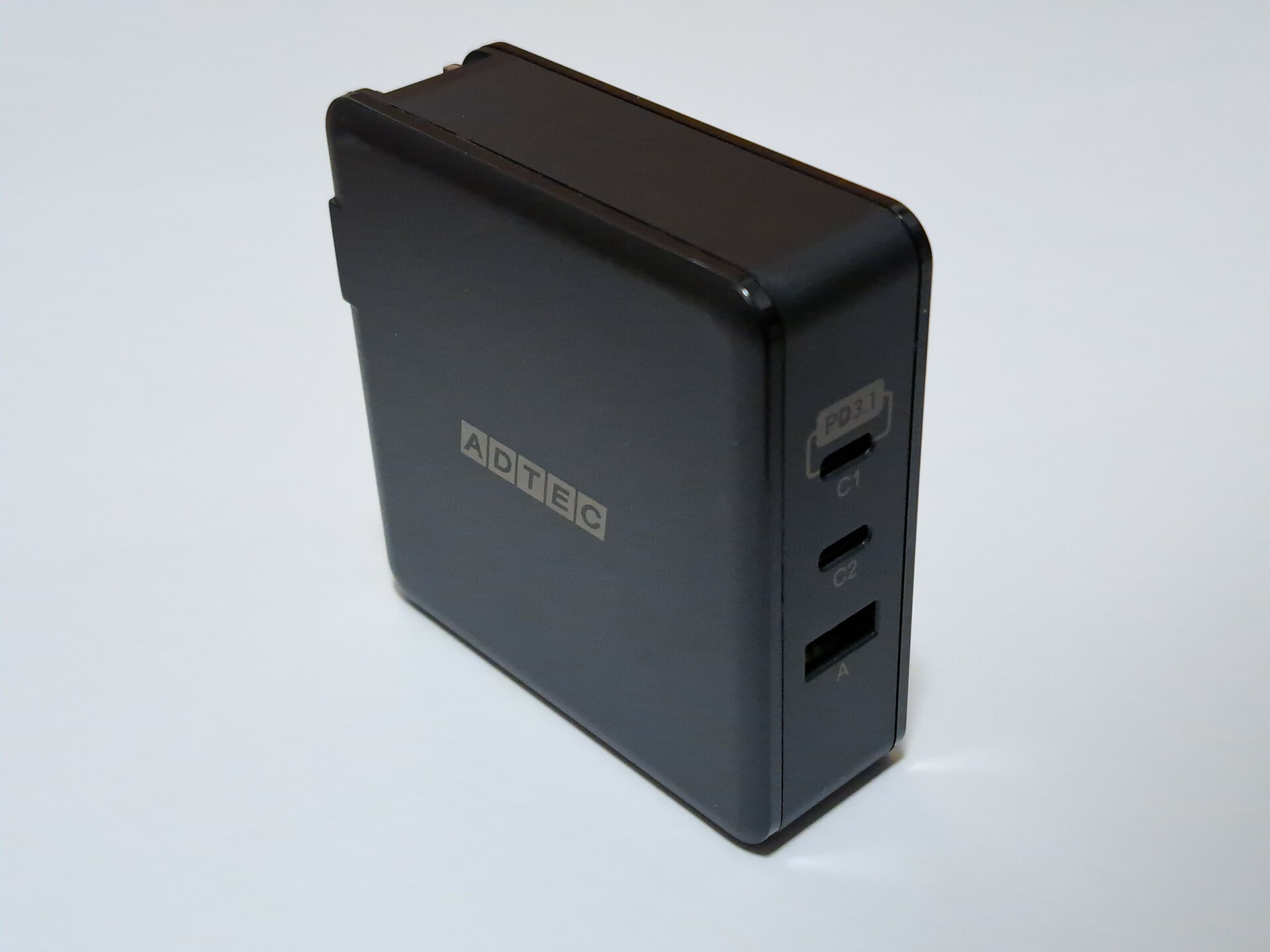
Copy the actual socket names before reading a sharing table: this reference charger labels its USB-C sockets C1 and C2, and its USB-A socket A. Three physical ports do not mean three USB-C connections. No simultaneous wattage is established by this photograph.
Version notes
Real reference hardware photographed 28 July 2022; Commons upload 15 March 2026. Evergreen socket-label inspection, checked 31 October 2026. This ADTEC model is separate from the Anker specification example; neither current availability nor charging compatibility is claimed. Full downloaded official thumbnail retained unchanged. Display photograph resized for loading speed; the full-size link preserves the original download.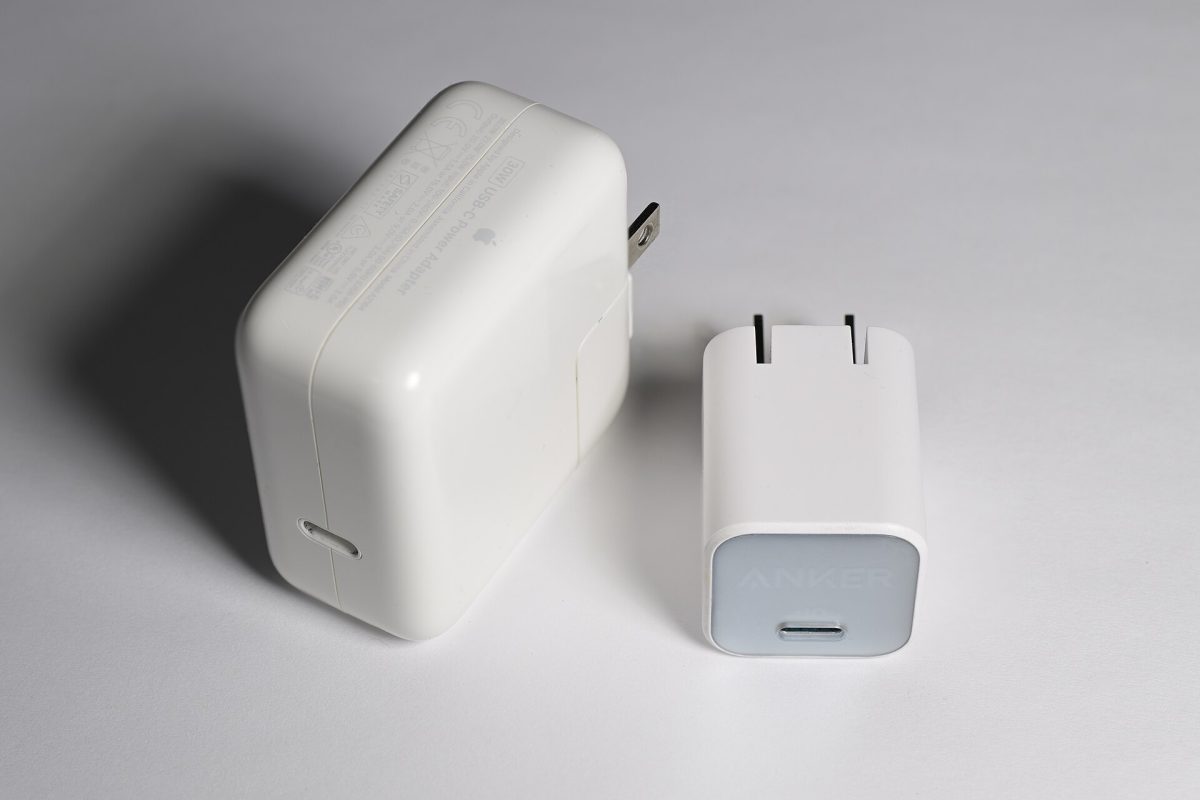
Read the row for every occupied port
Open the manufacturer’s specifications or manual for the exact charger model. Look for separate entries for one, two and three ports in use, then locate your intended combination. A single-port maximum and a total-output maximum answer different questions.
For a concrete example, Anker’s A2688 specifications list two USB-C ports and one USB-A port. Either USB-C port can offer up to 100W alone, while the listed three-port total is 89W. Anker also says to use the upper port for the laptop when both USB-C ports are occupied. These are manufacturer specifications, not Knowligent measurements or a buying endorsement.
Do not carry those numbers over to a similarly named charger. Ask these questions of each candidate:
- What is the maximum available to the laptop socket with every intended device connected?
- Do the other sockets retain enough power for their assigned devices?
- Are any ports grouped under one shared limit, rather than having independent allowances?
- Does the manual describe priority rules, changing allocations or interruptions when a device is attached?
If the listing only repeats a large total and omits simultaneous allocations, treat the result as unknown. Obtain the full manual or choose a candidate with clear documentation before paying for extra wattage.
A budget that passes the sum but fails a device
Hypothetical example: you choose planning targets of 65W for a laptop, 20W for a phone and 15W for a tablet. They add to 100W. A hypothetical three-USB-C charger offering 65W + 20W + 15W in simultaneous use meets that allocation. One offering 45W + 35W + 20W also totals 100W, but misses the laptop’s target. Spare capacity on another socket cannot be assumed to move where you need it.
Those figures are invented planning targets, not requirements for unspecified devices. Replace them with your own documentation. Adding targets narrows the shortlist; checking the actual allocation decides whether a charger fits.
Check the charging language, then the cable
USB-C names the connector. USB Power Delivery, usually shortened to USB PD, allows compatible equipment to negotiate power. Devices take the power they require within the supported arrangement; a higher charger rating does not mean that amount is forced into a phone.
Compare the device’s specified charging mode with the charger’s supported output profiles. If the device maker requires PPS, a programmable power supply mode, for a particular fast-charge rate, look for explicit PPS support with the required range. A large total or a generic fast-charging claim is insufficient evidence. Do not promise a charging time from wattage alone.
Give the laptop cable its own line in the budget. USB-IF’s cable power markings distinguish 60W and 240W ratings. A cable documented for only 60W does not meet a 65W planning target. For a new purchase above 60W, a suitably certified 240W USB-C charging cable provides a clear power rating, provided the charger and device support the needed mode.
Keep known, documented cables if they meet your requirements. An unmarked cable has an unknown rating until its exact model is identified; thickness and plug colour do not resolve it. For deeper cable checks, see USB-C cables, charging, data and displays.
Verify the combination during the return window
Keep your previous working charger available. Start with the laptop alone on the specified high-power socket using a documented cable. Confirm that it recognises external power. Then add the phone and tablet one at a time, checking each device’s charging indicator after each connection settles.
- On a USB-C-charging Mac, hold Option while opening the Apple menu and choose System Information. Select Power in the sidebar.
- Find AC Charger Information and record the listed wattage. Apple documents this check and recommends sufficient power for your particular Mac model.
- Repeat the inspection after adding the other devices; reopen System Information if necessary to obtain a fresh report. Compare the result with the charger’s simultaneous-use specification.
The reported adapter wattage is not a live measurement of energy entering the battery. Check that the laptop’s battery level can increase during your ordinary workload, with charge limits and any charging hold taken into account. A full battery cannot demonstrate refill speed. Record your starting battery level, workload, occupied sockets and observed behaviour so that a later comparison is meaningful.
If charging worsens after attaching another device, disconnect the added devices and return to the laptop-only arrangement. If that restores normal behaviour, recheck the sharing row and socket assignment. If it does not, substitute the previous working cable, then the previous charger, changing one component at a time. Avoid buying another charger before isolating the failing combination.
A brief change of charging indication on connection calls for checking the model’s documented redistribution behaviour. Repeated disconnects or a device that never resumes charging are a failed acceptance check: keep the working setup and contact the manufacturer with your model, cable and port notes. The useful outcome is a repeatable arrangement that powers your actual devices together, with known limits.
Sources, versions & scope
The steps describe the documented controls and expected checks; they are not a claim that every device or software release has been physically tested. Platform and version differences are stated with the procedure.