A monitor advertised as 165 Hz can still arrive on your desk running at 60 Hz. Before paying for more speed, establish which motion you want to improve and whether your computer can deliver it at the resolution you intend to use. This guide covers buying decisions and a Windows 11 verification routine for an external monitor.
Separate Hz, frames per second and milliseconds
Refresh rate, measured in hertz, describes how often a screen updates. Frame rate, measured in frames per second (fps), describes how many images the computer produces. Pixel response time describes how quickly pixels change colour; it is usually quoted in milliseconds. A large Hz number and a small response-time number answer different questions.
A 144 Hz screen does not turn a game producing 45 fps into 144 distinct frames. Equally, buying a powerful graphics card does not make a 60 Hz panel display 144 complete updates each second. Intel’s refresh-rate explanation treats the computer and display as a system: check actual game performance before upgrading.
| Refresh rate | Time between updates: 1,000 ÷ Hz |
|---|---|
| 60 Hz | 16.67 ms |
| 120 Hz | 8.33 ms |
| 144 Hz | 6.94 ms |
| 240 Hz | 4.17 ms |
These calculations explain diminishing time savings. Moving from 60 to 120 Hz halves the interval; moving from 120 to 144 Hz trims about 1.39 ms. Neither calculation predicts total mouse-to-screen delay, which includes other stages. Use the table to understand the scale of a change, rather than to rank complete monitors.

Set a motion target before a shopping filter
For documents, email and spreadsheets, try the same scrolling page on a 60 Hz and a 120 Hz or faster demonstration screen if available. Keep text size and scrolling method comparable. Ask whether the difference matters during your work. A pleasant demonstration can justify a preference, but it cannot establish how your laptop and dock will drive that monitor.
For games, use the game’s own performance counter if available. Play a representative busy section at your intended resolution and quality settings. Record the usual range and conspicuous slowdowns, rather than one peak number in an empty room. If the monitor upgrade also raises resolution, your current lower-resolution result is incomplete evidence.
As a hypothetical buying decision, a player seeing roughly 90–130 fps may value a 144 Hz display with compatible variable refresh more than paying extra solely for 240 Hz. Someone reliably producing much higher frame rates in competitive games has a different reason to compare faster panels. There is no universal threshold at which everyone should buy the same screen.
Keep the rest of the purchase intact: readable text, suitable size, stand adjustment and the connections you need. The existing everyday monitor guide covers workspace fit; here the purchase condition is usable motion.
Ask for one complete display mode
Write the requirement as a sentence: “This computer, through this dock and cable, must run this monitor at 2560 × 1440 and 144 Hz.” This is a hypothetical requirement, not a promise that any named connector can deliver it. Add your other active screens and whether HDR is required when asking the manufacturer or seller to confirm compatibility.
Inspect the computer’s video sockets and the monitor’s inputs, read their markings, and match each to the exact model’s manual. Record the chosen sockets in your requirement. A connector photograph can help identify the physical interface; it cannot establish its supported resolution, refresh rate or variable-refresh features.
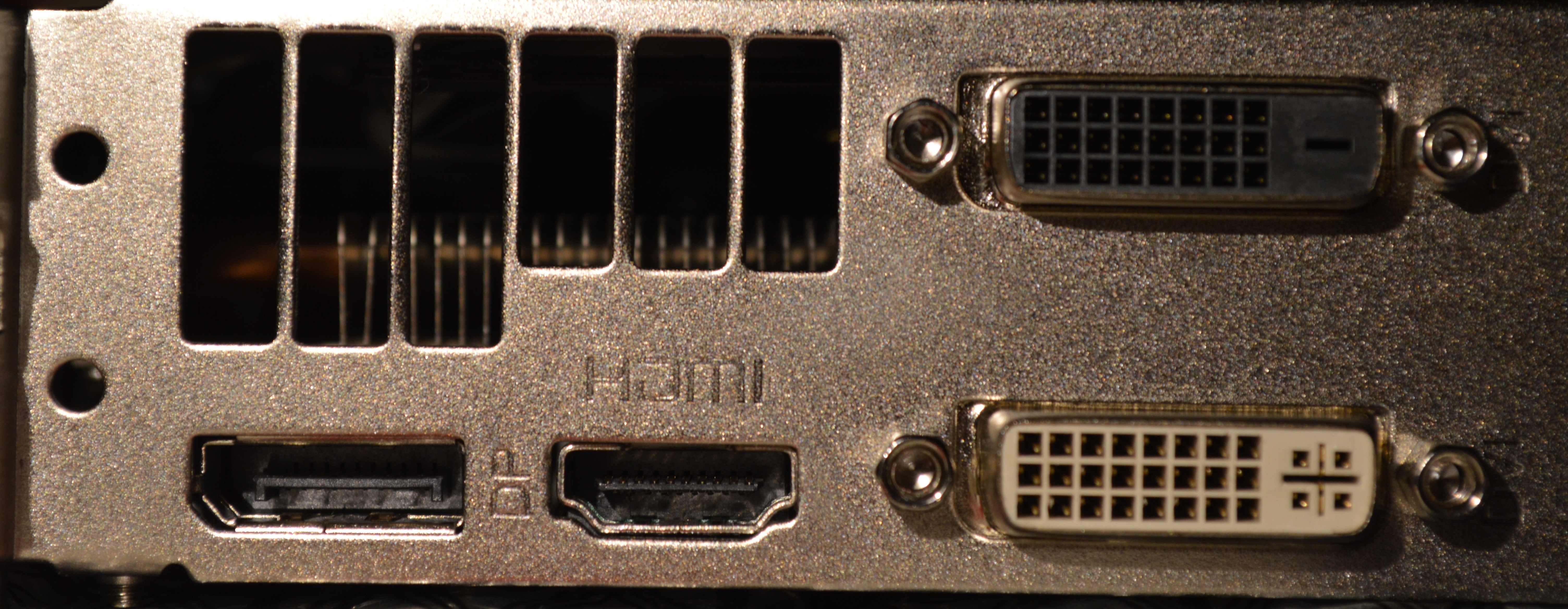
Compare physical sockets with the manual: DisplayPort is at lower left and HDMI is beside it, below its stamped label. The two larger sockets on the right are DVI. This photograph establishes no supported refresh rates.
Version notes
Nick Stathas camera photograph dated 2015-11-29. Evergreen physical shape-and-marking reference, not current graphics-card advice or a Windows capture. Full original downloaded unchanged; official thumbnail server returned HTTP 403. Display photograph resized for loading speed; the full-size link preserves the original download.There is a concrete reason to read input-specific specifications. Dell lists its G2724D at 2560 × 1440 with up to 165 Hz through DisplayPort but 144 Hz through HDMI. This is a documented example, not a current product recommendation. “165 Hz monitor” alone leaves out a material purchasing condition.
Check the computer output, any adapter or dock, the cable specification and the monitor input. A dock listing that says only “4K” has not answered your refresh-rate question. Ask for the mode with your exact computer and simultaneous screen arrangement. If the answer is unclear, price a confirmed connection before ordering; avoid buying several speculative adapters after delivery.
Verify the delivered mode in Windows 11
Save work, connect the monitor and note its model, connection route and starting settings. Use this short check before deciding that your purchase is incompatible:
- Open Start → Settings → System → Display → Advanced display. Select the external screen if several are connected.
- Read Display information and record the resolution and refresh rate. Note the reported variable-refresh support.
- Under Choose a refresh rate, select an offered rate appropriate to your target. An asterisk marks rates that require a resolution change; avoid those when preserving resolution.
- Read the resulting information again. Confirm both numbers, then compare your normal scrolling or game scene. Return to the recorded rate through the same control to undo a readable but unwanted change.
Microsoft documents these controls and the asterisk warning. A higher number accompanied by an unwanted resolution change has failed your purchase requirement.
If the expected rate is missing
First confirm you selected the external screen. Then compare the actual route with the mode you researched. If you have a documented compatible direct cable, save work and temporarily bypass the dock; safely eject any storage attached to the dock before disconnecting it. Reopen Advanced display and compare the offered modes. Restore the original route if this changes nothing.
If the target appears only when connected directly, investigate the dock or adapter specification before replacing the monitor. If it remains absent, check the monitor manual for input-specific settings and obtain graphics-driver updates from the PC or graphics manufacturer. Keep to documented modes rather than forcing custom timings.
If changing the rate leaves the screen unreadable, leave any confirmation unaccepted and allow an automatic rollback if offered. If it stays blank, reconnect the previously working route or use the laptop’s built-in display to restore the recorded settings. Persistent failure with a manufacturer-confirmed connection is a reason to contact support or use the seller’s return process.
Check the two features that Hz cannot settle
Variable refresh rate (VRR) lets a compatible display follow changing frame delivery to reduce tearing. Check compatibility across your graphics hardware and chosen input, not just a badge on the box. It does not create missing frames. Intel’s refresh-rate guide explains why adaptive sync can help when performance fluctuates.
Windows Dynamic refresh rate (DRR) is a separate automatic adjustment feature. Microsoft requires VRR support and at least 120 Hz. If enabling DRR reduces a game’s refresh rate, turn it off in Advanced display. Its absence alone does not establish that the monitor cannot use a fixed high rate.
Finally, do not interpret an advertised “1 ms” pixel response as total input delay. Intel’s monitor guide explains that response claims can be best-case results and aggressive overdrive can introduce overshoot artifacts. During your return window, inspect moving text and game edges for distracting trails or bright halos. If changing a documented response-time setting helps, retain that usable setting instead of chasing the smallest advertised number.
Keep the purchase when it delivers your chosen resolution and refresh rate through your intended setup, with motion you prefer. If achieving its headline speed requires sacrificing the text clarity or connections you bought it for, reconsider the combination while returning it remains possible.
Sources, versions & scope
The steps describe the documented controls and expected checks; they are not a claim that every device or software release has been physically tested. Platform and version differences are stated with the procedure.