A keyboard types by itself, a page jumps, or an app opens while your hand is away from the glass. These unwanted inputs are often called ghost touches. The useful question is what changes the behavior: disconnecting power, drying the surface, removing an accessory, or restarting the phone.
This guide covers rigid-screen iPhones with Face ID. It starts with physical checks and uses the button sequence for that hardware family. Foldable inner displays, Home-button iPhones and Android phones need their own model instructions.
The screen detects an electrical change
A capacitive touchscreen senses changes in capacitance through its cover, rather than requiring a mechanical switch to close. Your finger changes the electrical coupling around the sensing electrodes. The touch system interprets those measurements as positions on the display.
Something other than an intended fingertip can disturb that process. Microchip’s sensor design guide explains how water can alter coupling and, in some arrangements, produce a false detection. It also describes shielding against interference. That establishes the general mechanism; it does not identify the controller in your particular iPhone or prove which component has failed.
There are also ordinary inputs you did not mean to make: part of your hand may brush an edge while you grip the phone. First establish whether the screen reacts when nothing touches it. A page loading more content or a video advancing automatically is not, by itself, evidence of a touch event.
Observe somewhere an accidental tap does little harm
Move away from a payment, message composer or deletion confirmation before investigating. If you cannot reliably control the screen, press the side button once to lock it and stop trying to navigate sensitive apps. Do not repeatedly enter a passcode while the phone is producing extra taps.
If navigation is steady enough, use an ordinary page in Settings as a quiet observation surface. Rest the phone on a clean, dry table, lift your hands away and watch for unsolicited scrolling or selections. Then try a deliberate short scroll. Note whether the problem occurs at rest, during a real touch, or only when you hold the phone.
Keep the observation simple: which screen, whether a cable was attached, whether the surface was wet, and whether the same area misbehaved. A short video from another device can preserve the distinction between hands-off activity and an accidental brush. Keep private notifications out of the recording. This is evidence for a repair conversation, not a calibrated touchscreen test.
Make one change: remove the power connection
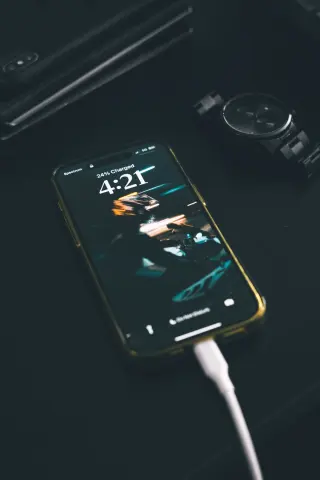
Apple’s touchscreen troubleshooting guidance specifically recommends disconnecting Lightning or USB-C accessories. Unplug the phone and remove other attached accessories, then repeat the same harmless observation on battery power. If it was on a wireless charger, set it on the dry table for the comparison too.
If unwanted inputs stop, you have identified a condition worth investigating. Apple recommends trying another outlet, cable or charger when disconnecting an accessory restores normal response. Change one item at a time and keep your observation surface the same. Use undamaged equipment suitable for the phone; stop using anything visibly damaged.
For example, in a hypothetical comparison, the phone behaves normally on battery and with a replacement cable, but the original cable brings the problem back. Record that pattern and retire the suspect cable. It points to the original connection path; it does not establish that the wall wiring is faulty or that every other part is healthy.
A single quiet interval cannot rule out an intermittent fault. Repeat the comparison during ordinary use, without opening anything where an extra tap would matter. If the problem continues unplugged, move on instead of purchasing several chargers on speculation.
Check what is touching or covering the glass
Inspect the front and its edges in good light for moisture, trapped debris, a lifting protector or visible cracks. Look without pressing or flexing the panel. The photograph below shows obvious fractured glass; it cannot reveal the condition of the touch sensor underneath.
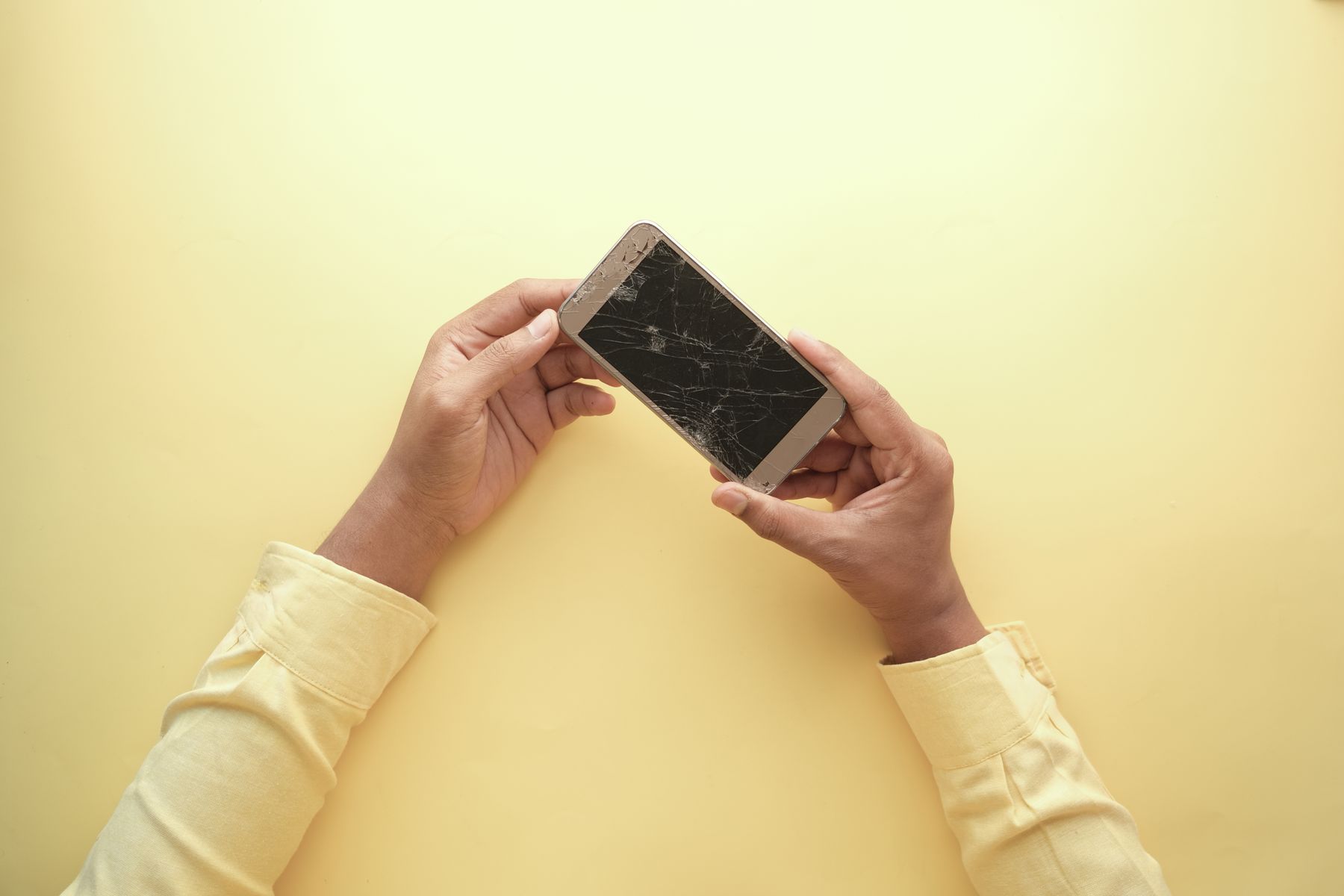
Look for visible fractures across the front and around its edges. This example has extensive damage: stop the cleaning and protector-removal checks and arrange service. The photograph cannot establish the condition of the touch sensor underneath.
Version notes
Real camera photograph taken November 11, 2021. Historical generic smartphone used solely to illustrate visible glass fractures, a stable hardware inspection feature. It is not a Face ID model identification, current iOS interface, or demonstration of ghost touches. Display photograph resized for loading speed; the full-size link preserves the original download.Remove an ordinary removable case and inspect whether its lip overlaps the screen. Apple also recommends removing screen protectors when investigating erratic response. Removing an adhesive protector may mean replacing it; do not assume it will stick back down. If the screen is already broken, do not peel layers or rub loose glass as part of this check. Arrange service.
For an intact screen, follow Apple’s iPhone cleaning instructions: disconnect cables, turn the phone off, and use a soft, slightly damp, lint-free cloth while keeping moisture out of openings. Avoid compressed air and abrasive materials. Do not spray cleaner onto the display. If you cannot operate the shutdown control safely, stop before damp cleaning and seek help.
With dry hands and a dry surface, repeat the same observation without the case or protector. Improvement makes an external cause more plausible. No improvement means repeated cleaning or harder rubbing is unlikely to provide useful new evidence. An intact-looking surface does not prove the display assembly is undamaged.
Take a repeatable symptom to service
Apple directs users toward service when its screen checks do not resolve the problem. Extra touches that persist on a dry, uncovered, unplugged phone after restarting deserve that assessment. Mention any drop, liquid exposure or display repair that preceded the symptom, without assuming it proves the cause.
Bring a short record: “scrolls without contact on two different screens; happens on battery; case and protector removed; returns after restart.” That tells a technician more than “touch sensitivity is wrong.” Add the video if it safely captures an intermittent event.
If control becomes stable, protect important data before handing over the phone; the device-reset preparation guide covers recovery planning. Avoid a factory reset as a casual diagnostic experiment when basic input is unreliable. Your stopping point is either a reproducible external trigger you can remove, or a documented fault ready for service.
Sources, versions & scope
The steps describe the documented controls and expected checks; they are not a claim that every device or software release has been physically tested. Platform and version differences are stated with the procedure.